















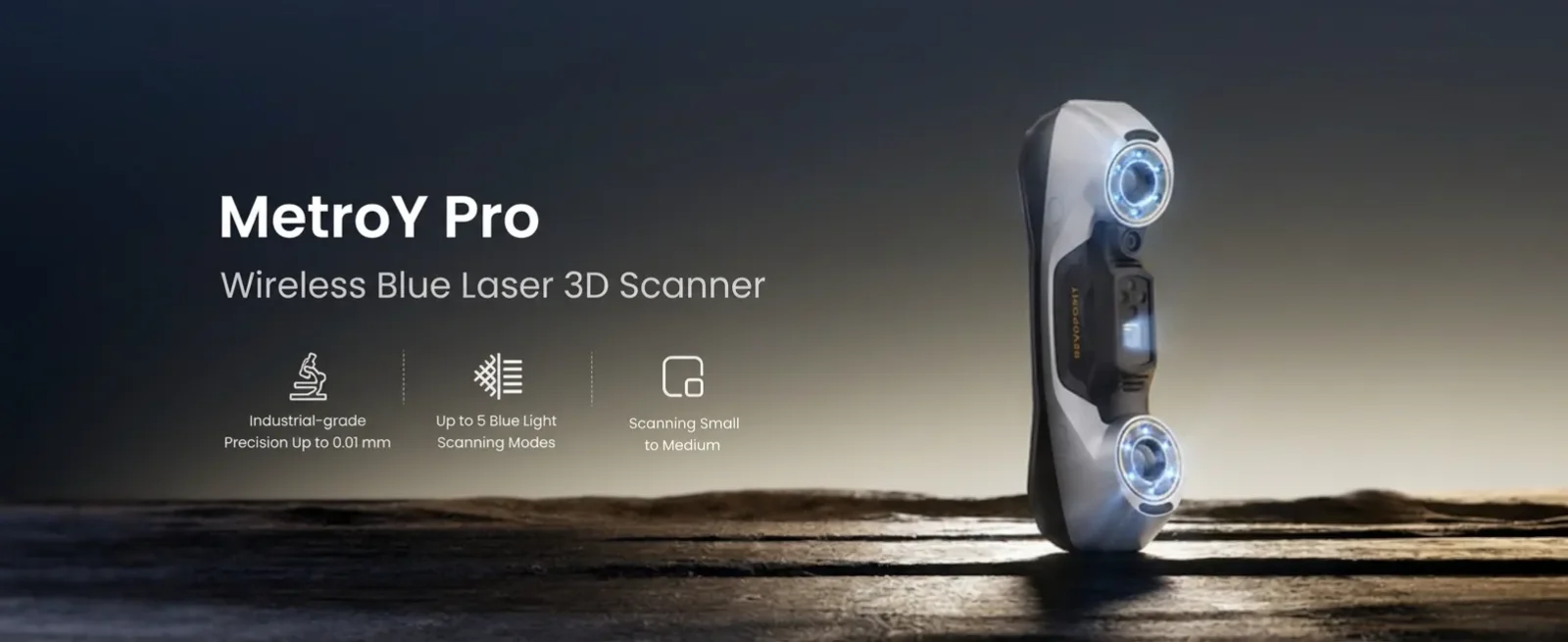

A few months ago, in our Revopoint METROX review, we told you that Revopoint had made the jump to blue laser with very serious results. The Revopoint MetroY Pro is its next step within the Metro family: more laser lines, more points per second, Wi-Fi 6 and a kit for handheld use with a battery grip and your phone as a screen. On paper, everything we had been missing.
Revopoint, in case you don’t know it, is a company founded in 2014 that makes nothing but 3D scanners. Its catalogue covers almost any use: the INSPIRE, POP, RANGE, MINI, MIRACO and Trackit series, plus the Metro family (METROX, MetroY, MetroY Pro and MetroY Ultra), which is the one aimed at metrology and reverse engineering.
In this review we go over what the MetroY Pro offers, how it differs from the base MetroY and the MetroY Ultra, what it is like to work with its Revo Metro software and what it has given us in the weeks we have been using it, the good and the not so good.
As always, before we go on, remember that you can join our community on the 3Dwork Telegram channel, full of makers passionate about 3D printing, lasers and CNC. You can also find us on Instagram, YouTube and TikTok.
Revopoint MetroY Pro: what it is and who it is for
The MetroY Pro is a handheld and desktop 3D scanner that combines two technologies: multi-line blue laser and full-field blue structured light. It is designed for small and medium-sized parts, with a recommended scanning volume ranging from 10 × 10 × 10 mm up to 1 × 1 × 1 m.
The figures Revopoint quotes are those of a metrology device: single-frame precision of up to 0.01 mm, accuracy of up to 0.02 mm and volumetric accuracy of 0.02 mm + 0.04 mm × L, where L is the length of the object in metres. Applied to a 500 mm part, the theoretical accumulated error would be around 0.04 mm.
It is worth not confusing the first two terms. Precision tells you how closely several repeated measurements of the same object agree with each other; accuracy, how close the measurement is to the real value. Revopoint points out that both are obtained in a laboratory and that results may vary in a normal workshop.
The big change compared with the METROX is connectivity. The MetroY Pro has Wi-Fi 6 as well as USB-C, and the box includes the 3rd-generation Mobile Kit: a battery grip and a phone holder. That said, it has no internal battery and does no processing on its own, so a computer is still essential; the phone only acts as a screen through the Revo Mirror app.
Revopoint targets it at these uses:
- Reverse engineering and scan-to-CAD workflows
- Quality control and dimensional inspection, comparing the scan with the CAD model
- 3D printing: spare parts, adapters and parts that have to fit something that already exists
- Vehicle modification and mechanical parts
- Industrial design, art and heritage
Revopoint publishes a 3D model of the scanner itself that you can rotate and examine right here:
These are the official technical specifications of the Revopoint MetroY Pro:
| Scanning type | Handheld and desktop | Operating systems | Windows 10/11 (64-bit); macOS 11.0 or later (coming soon) |
| Technology | Multi-line laser and full-field structured light | On-board computing | Depth map (4-core ARM CPU at 2.0 GHz) |
| Object size | Small to medium | Buttons | 4 |
| Single-frame precision | Up to 0.01 mm | Outdoor scanning | No |
| Single-frame accuracy | Up to 0.02 mm | Export formats | PLY, OBJ, STL, ASC, 3MF, GLTF, FBX |
| Volumetric accuracy | 0.02 mm + 0.04 mm × L (m) L is the length of the object | Fused point distance | Up to 0.05 mm |
| Working distance | 200 to 400 mm | Connection | USB Type-C to Type-C and Wi-Fi 6 |
| Capture area at 200 mm | 152 × 138 mm | Power supply | DC 12 V, 3 A (no internal battery) |
| Capture area at 400 mm | 332 × 276 mm | 3D light | 34 crossed blue laser lines 15 parallel blue laser lines 1 single blue laser line 62-line blue structured light |
| Angular field of view (H × V) | 49 × 38° | Dimensions | 211 × 94 × 47 mm |
| Scanning volume | From 10 × 10 × 10 mm to 1 × 1 × 1 m | Weight | 450 g |
| Scanning speed | Multi-line laser: up to 2,000,000 points/s Structured light: up to 7,000,000 points/s | RGB camera | 2 megapixels |
| Colour scanning | Only in auto turntable mode | Tracking methods | Markers, global markers and features |
| Fill lights | 12 blue LEDs | User recalibration | Yes |
| Compatible accessories | Marker Block Kit, Mobile Kit (3rd gen.), dual-axis turntable | Special objects | Scanning spray on transparent or specular surfaces |
| Minimum PC | macOS: M2 Pro, 16 GB RAM Windows: 13th-gen Intel i7 or AMD Ryzen 7 5800, 32 GB RAM, NVIDIA RTX 3060 (8 GB) | Recommended PC | macOS: M4 Pro or higher, 24 GB RAM Windows: 12th-gen Intel i9 or higher, 64 GB RAM, NVIDIA RTX 4060 (8 GB) or higher |
MetroY Pro vs MetroY Ultra and MetroY: what changes
All three share the same housing (211 × 94 × 47 mm and around 450 g), a working distance of 200 to 400 mm and USB-C or Wi-Fi 6 connectivity. From the outside you can barely tell them apart; what changes is which scanning modes each one has and what kind of work it is designed for.
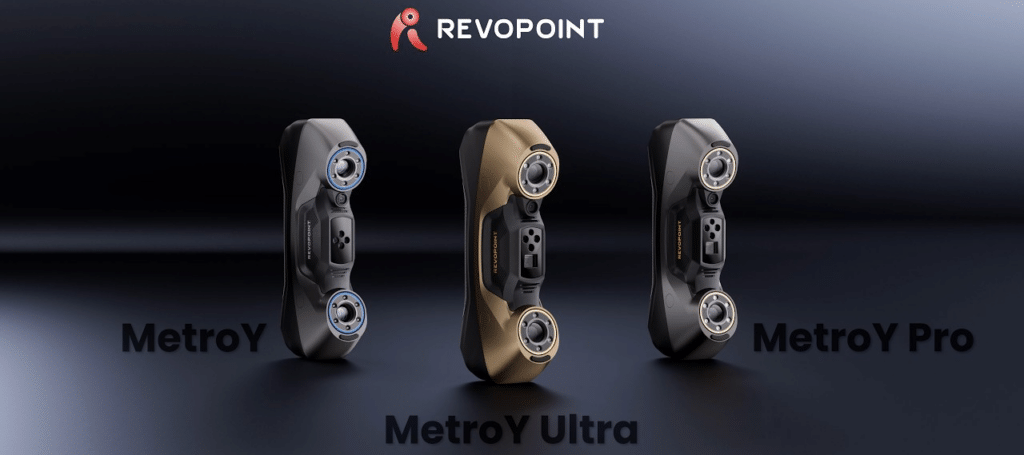
The MetroY is the laser-only version: 30 crossed lines, 15 parallel lines and a single line, always handheld. It has no structured light, no turntable mode and no colour, and it needs markers to track the part. It makes sense if you scan mechanical parts, tooling or spare parts and already work with markers.
The MetroY Pro, the one we have tested, adds what the base model lacks: 62-line structured light to scan parts with surface detail without markers, feature tracking, the auto turntable mode and colour in that mode. The laser goes up to 34 crossed lines and 2,000,000 points per second, and the capture area grows. Precision and accuracy are the same as on the MetroY.
The MetroY Ultra has the same five modes as the Pro, but it is aimed at measurement. The laser reaches 3,000,000 points per second, single-frame accuracy improves from 0.02 to 0.015 mm, the maximum scanning volume goes from 1 to 2 m and it can work outdoors in laser mode, in up to 100,000 lux. It comes with a battery grip and lets you verify accuracy in your own workshop with a Ball Plate or the CMM edition. If you are not going to do dimensional inspection or scan outdoors, the Pro does the same job day to day.
MetroY Pro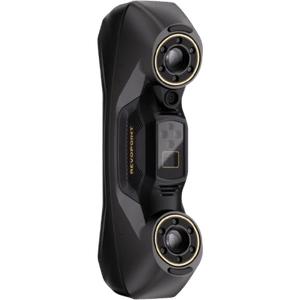 | MetroY Ultra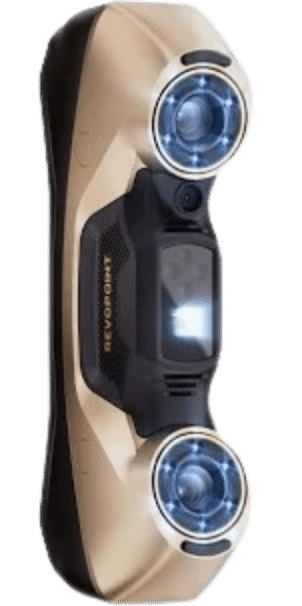 | MetroY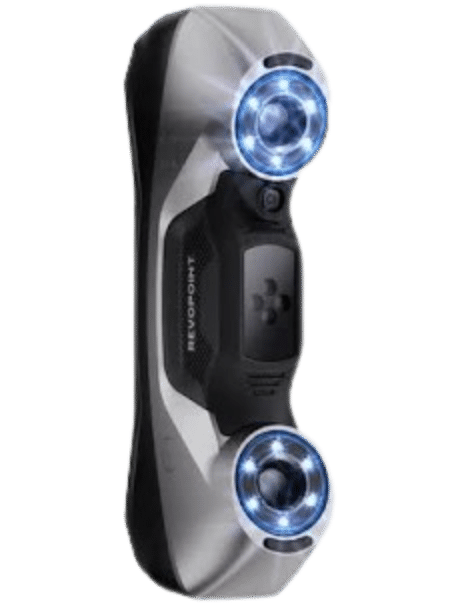 | |
|---|---|---|---|
| Technology | Multi-line laser + structured light | Multi-line laser + structured light | Multi-line laser |
| Crossed laser lines | 34 | 34 | 30 |
| Parallel laser lines | 15 | 15 | 15 |
| Single-line mode | Yes | Yes | Yes |
| 62-line structured light | Yes | Yes | No |
| Auto turntable mode | Yes | Yes | No |
| Laser speed | 2,000,000 points/s | 3,000,000 points/s | 1,500,000 points/s |
| Structured light speed | 7,000,000 points/s | 7,000,000 points/s | N/A |
| Single-frame precision | 0.01 mm | 0.01 mm | 0.01 mm |
| Single-frame accuracy | 0.02 mm | 0.015 mm | 0.02 mm |
| Volumetric accuracy | 0.02 mm + 0.04 mm × L (m) | 0.015 mm + 0.04 mm × L (m) | 0.02 mm + 0.04 mm × L (m) |
| Tracking | Markers, global, features | Markers, global, features | Markers, global |
| Colour scanning | Turntable only | Turntable only | No |
| Outdoor scanning | No | Yes, in laser mode (up to 100,000 lux) | No |
| Capture area at 400 mm | 332 × 276 mm | 332 × 276 mm | 290 × 260 mm |
| Angular field of view | 49 × 38° | Not stated | 43 × 33° |
| Maximum scanning volume | 1 × 1 × 1 m | 2 × 2 × 2 m | 1 × 1 × 1 m |
| Connection | USB-C and Wi-Fi 6 | USB-C and Wi-Fi 6 | USB-C and Wi-Fi 6 |
| Battery | With Mobile Kit (accessory) | 5,500 mAh Battery Grip, around 2.5 h | With Mobile Kit (accessory) |
| Weight | 450 g | 450 g | 447 g |
The decision comes down to four variables: the size of the object, the precision you need, where you will be working (workshop, field or outdoors) and whether you need colour. For small and medium-sized parts where precision matters, the choice is the Metro family, with 0.02 mm maximum precision and a volume of up to 1 × 1 × 1 m. Within it, the MetroY Pro is the mobile option: Wi-Fi 6 and colour in turntable mode, something the base MetroY does not offer.
If the object is large or is a person, the manufacturer’s suggestion switches to structured light scanners with a 4 × 4 × 4 m volume. The RANGE 2 claims up to 0.1 mm single-shot precision and 0.3 mm accuracy, and weighs 253 g. For working without a PC and with photogrammetry on large objects, Revopoint’s guide recommends the MIRACO Plus; for colour outdoors, the INSPIRE 2.
| Model | Best for | Max. claimed precision | Max. volume |
|---|---|---|---|
| MetroY Pro | Flexible, mobile use, with colour on the turntable | 0.02 mm | 1 × 1 × 1 m |
| MetroY | Portable, workshops, no colour | 0.02 mm | 1 × 1 × 1 m |
| METROX | Small and medium parts, industry; requires a PC | 0.02 mm | 1 × 1 × 1 m |
| RANGE 2 | Large objects, people, fieldwork | 0.1 mm single shot (0.3 mm accuracy) | 4 × 4 × 4 m |
| MIRACO Plus | Photogrammetry and large objects, standalone | 0.04 mm | 4 × 4 × 4 m |
| INSPIRE 2 | Mobile, outdoor and colour | 0.05 mm | 2 × 2 × 2 m |
The rule of thumb: if your parts fit within a cubic metre and you are after precision, stick with the Metro family; if you scan large objects or people, or work outdoors, look at the 2 to 4 metre models, accepting that the claimed precision drops.
Revopoint MetroY Pro: unboxing and design
Revopoint always pays a lot of attention to its products, and in this case the MetroY Pro comes in a superb carrying case, fully protected and very convenient for transporting it safely.
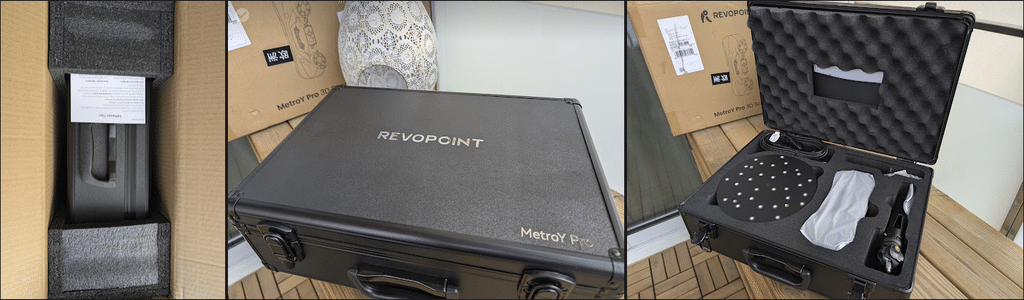
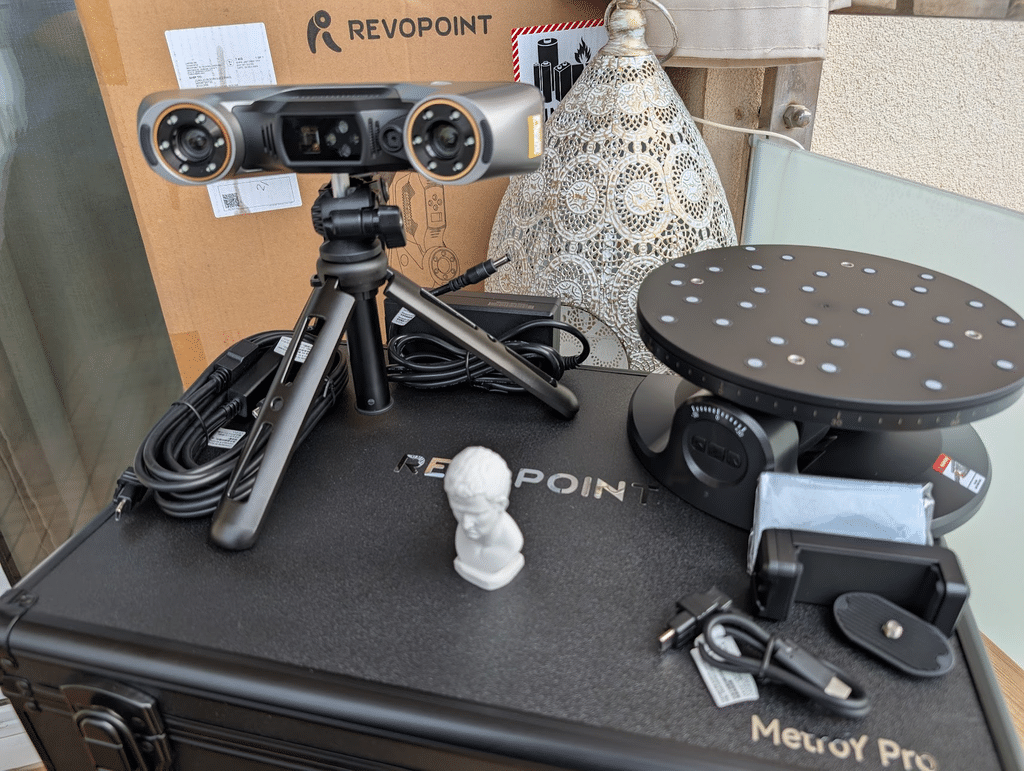
Everything travels in an aluminium case, more generic and quite a bit larger than those of other scanners in its range. The reason is simple: the dual-axis turntable fits inside. Both the case and the housing feel sturdy and nothing struck us as flimsy.
The MetroY Pro box includes:
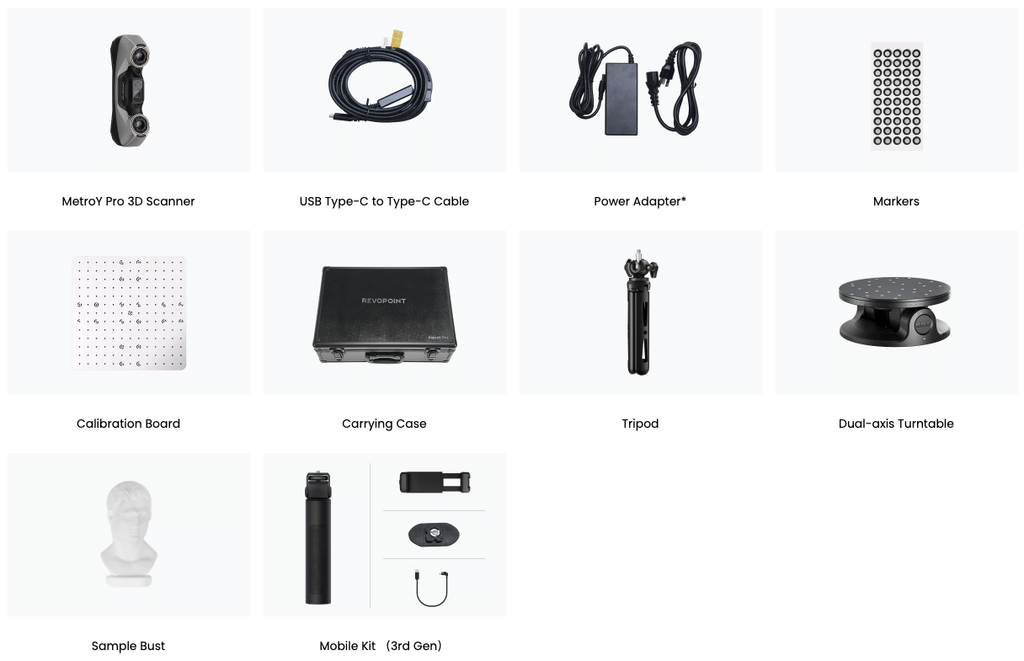
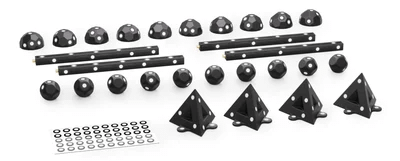
The Pro kit can also include the Marker Block Kit (magnetic marker blocks and columns for the turntable), although unfortunately we did not have it in our case. From past experience, it is a good add-on depending on the type of parts you want to scan.
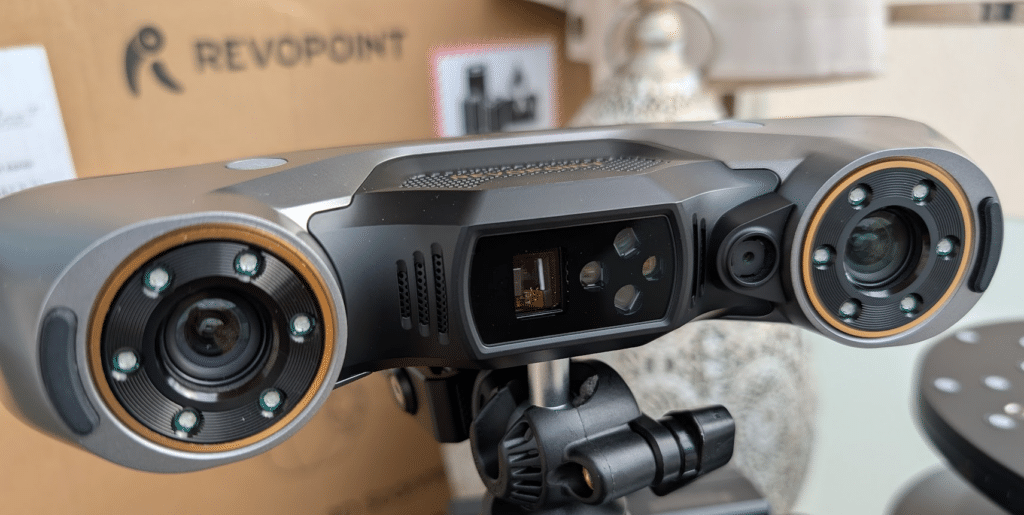
The scanner measures 211 × 94 × 47 mm and weighs 450 g, about 60 g less than the METROX. It has fans and temperature sensors on the image sensor and the CPU, which compensate for small thermal drift and show the temperature on screen. Revopoint recommends leaving it switched on for 10 minutes before calibrating.
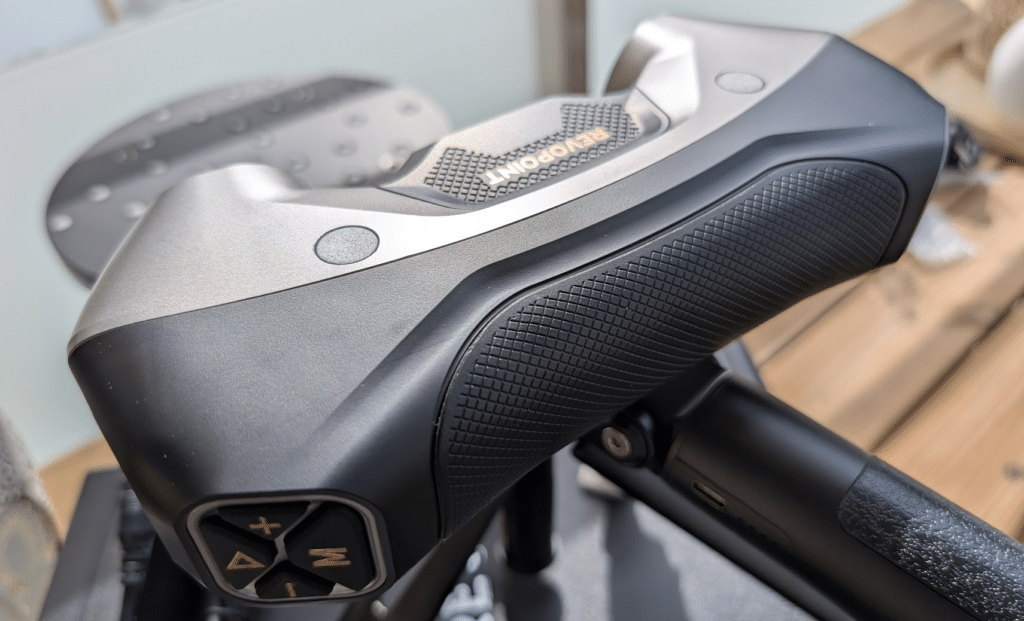
The MetroY Pro shares its housing with the MetroY. These are the ergonomic details we noticed most with it in hand:
- The grip areas are more recessed than on the METROX, so it is easier to hold
- The cable comes out at a more vertical angle and, in the natural holding position, your hand rests on it
- The buttons are in the same place as on the METROX, but in a different order: the first one is now start/pause, and the preview button moves to the top
- The fan has moved to the top; you can hear it at start-up and then it goes quiet
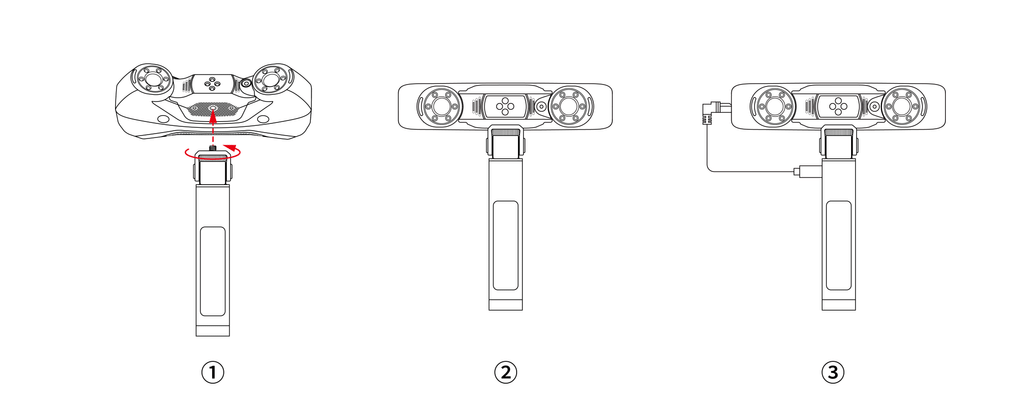
The Mobile Kit screws into a threaded mount on the side of the scanner. The grip powers the unit through a short cable, the scanner creates its own Wi-Fi network and the computer connects to it. With the Revo Mirror app, the phone shows what the PC sees, so you can move around a large part without dragging cables or looking at the laptop screen. Revo Mirror is an Android app, so we could not use it on an iPhone.
Below is Revopoint’s own unboxing video showing the whole process:
Revopoint MetroY Pro: scanning modes
The MetroY Pro has five scanning modes, three laser modes and two based on structured light. Choosing the right mode is half the job, and the software does not help you decide, so it pays to be clear about what each one is for:
Crossed lines (34 blue laser lines):
The fast mode. It captures flat surfaces and shiny or black areas without the need for spray, at up to 2,000,000 points per second.
Parallel lines (15 blue laser lines):
Designed for edges, sharp corners and complex surfaces. It covers less area per pass, but it is the one to use when detail matters.
Single line:
A single laser line to get into deep holes, slots and grilles. It worked for us at the bottom of some metal slots, after many passes, although on other parts we did not notice a clear improvement over parallel mode.
Full-field structured light (62 lines, Pro only):
It scans parts with enough geometry without markers, at up to 7,000,000 points per second. It is the easy mode, although on technical parts it loses detail compared with the laser and needs spray on dark reflective surfaces.
Auto turntable (Pro only):
Revo Metro coordinates the scanner and the dual-axis turntable to scan with a single click. It is the only mode that captures colour directly.
On top of the modes there are three tracking methods, which is how the software knows where the scanner is relative to the part:
- Markers: reflective stickers on or around the part. They are mandatory in the laser modes.
- Global markers: first you capture the marker map and then you scan on top of it. Useful for large parts.
- Features: it follows the part’s own geometry, without markers. Only on the Pro and with structured light.
You can switch modes halfway through a scan, but only within the same tracking method: press Finish, choose Continue, change the mode and carry on.
With the laser you will be living surrounded by markers, so it is worth following the manual’s guidelines:
- At least 5 markers visible in each frame, placed irregularly
- Spacing of about 6-7 cm between them, without overdoing the number
- Flat surfaces rather than curved ones
- No soft bases or fabric underneath the markers
The MetroY series performs better with the new high-reflectivity markers. The old ones also work, but with the new ones we were able to scan at tighter angles. That said, the MetroY Pro is demanding when it comes to markers: if you skimp on them, you lose tracking.
To avoid covering the part in stickers, there is the Marker Block Kit, a set of magnetic blocks with markers that you place around the object:
In laser mode, the MetroY Pro scans many shiny or dark surfaces without spray. But the manual adds quite a few caveats, and the rule changes with the mode:
| Surface type | Laser modes | Structured light and turntable |
|---|---|---|
| Transparent or specular (glass, stainless steel, chrome) | Spray needed | Spray needed |
| Dark reflective or metallic (black paint, machined aluminium) | Can be scanned without spray | Spray needed |
Revo Metro: connection, calibration and workflow
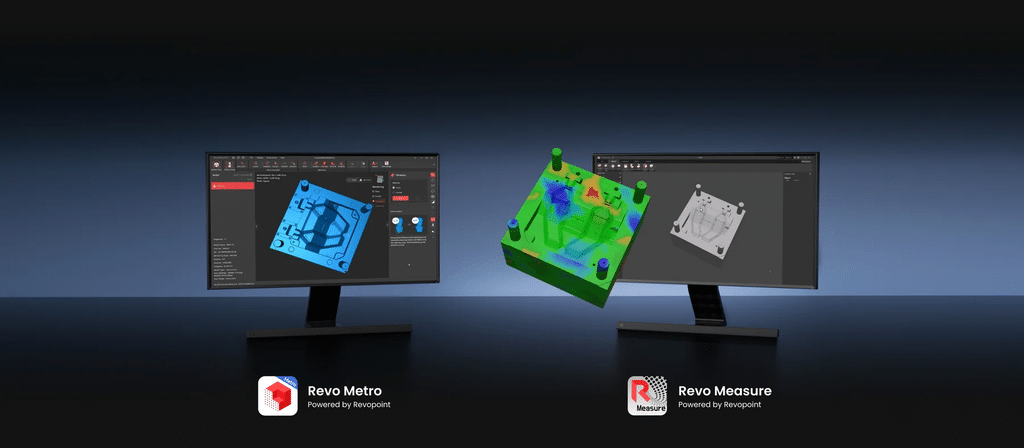
Unlike the METROX, which used Revo Scan, the MetroY series works with Revo Metro. It is free, works offline and lets you scan, edit, merge and export. The interface looks very much like Revopoint’s usual one, but it is clearly software designed for people who already have scanning experience.
There are no shortcuts with the computer requirements. Revopoint asks for a serious machine and says so openly:
- Windows minimum: 13th-gen Intel i7 or AMD Ryzen 7 5800, 32 GB RAM and an 8 GB NVIDIA RTX 3060
- Windows recommended: 12th-gen Intel i9 or higher, 64 GB RAM and an 8 GB NVIDIA RTX 4060 or higher
- macOS minimum: M2 Pro with 16 GB RAM
- macOS recommended: M4 Pro or higher with 24 GB RAM
There is one detail in the spec sheet worth reading carefully: GPU acceleration only works in the laser modes and only with NVIDIA. AMD graphics cards and Mac GPUs do not provide acceleration for now. Revo Metro lets you switch between CPU and GPU acceleration.
Our experience is in line with that. It ran without problems on an M3 MacBook and on a PC with a GPU, while a laptop without a dedicated graphics card was not up to it in demanding situations. With an i7 laptop with a GPU and 64 GB of RAM, scanning is fast.
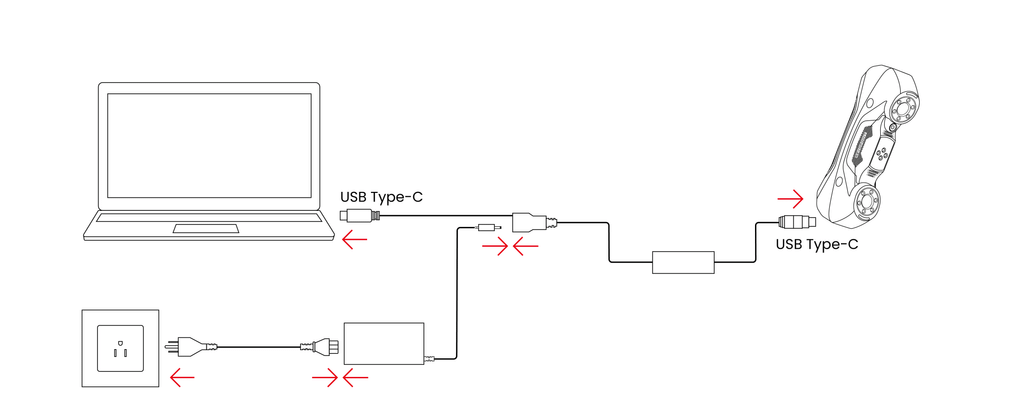
The recommended connection is wired: the scanner is powered by its adapter and connected to a USB 3.0 port on the computer, directly and without a dock. If the connection fails or the image drops below 10 FPS, the manual says to unplug the data cable without removing the power and plug it back in.
If you want to use it wirelessly, this is the process:
- Screw the Mobile Kit grip into the threaded mount on the side of the scanner
- Connect the grip to the scanner with the kit’s power cable
- Connect the PC to the “METROY-REVO-XXXXXXXX” Wi-Fi network, which has no password
- Open Revo Metro and wait for it to detect the scanner
- Optional: open Revo Mirror on your phone to watch the scan on the holder
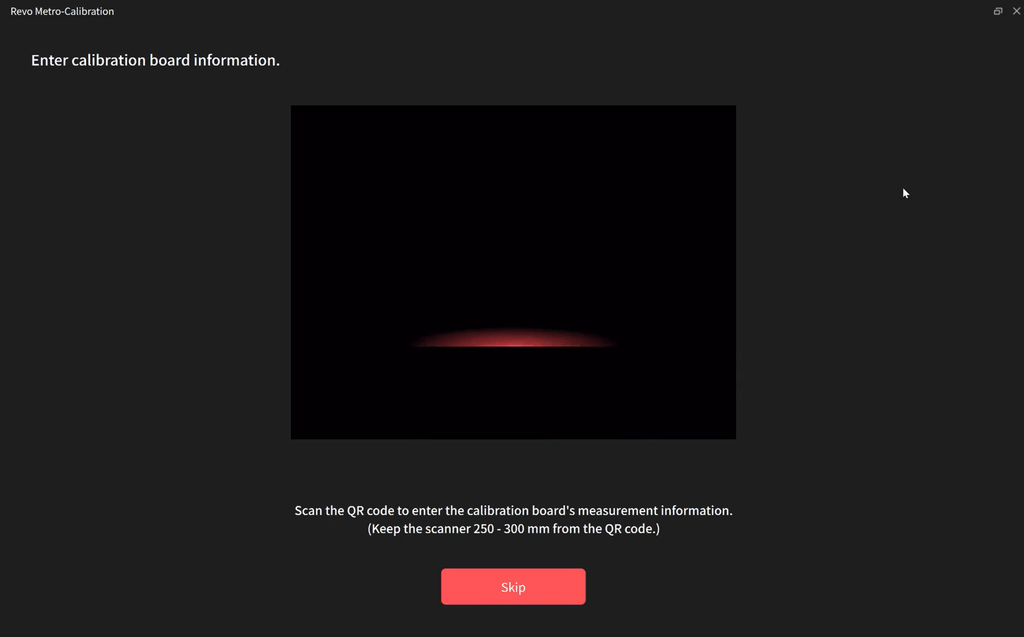
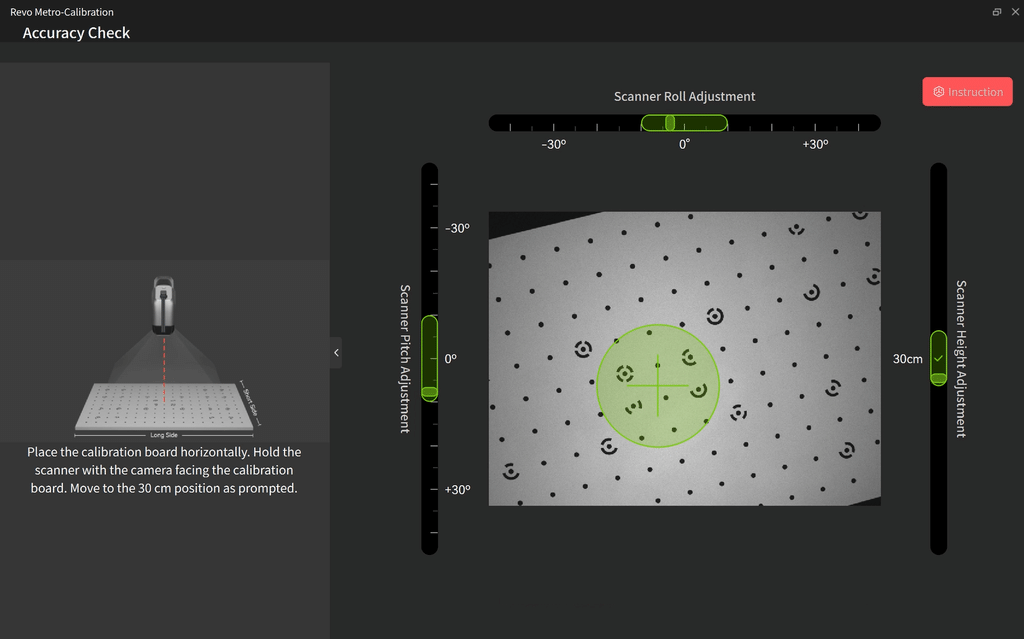
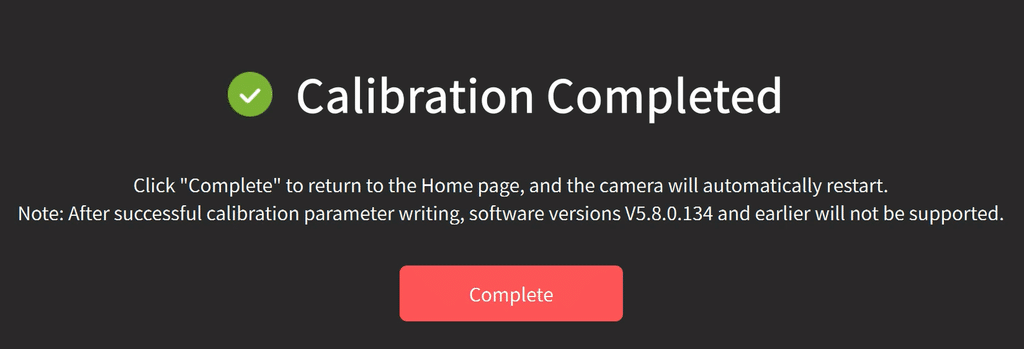
Calibration is done from Revo Metro itself with the included glass calibration board:
- Connect the scanner via USB and leave it on for 10 minutes so the temperature stabilises
- Click
Scanner Calibration, at the bottom left - Scan the QR code on the back of the board to load its measurement data
- Follow the wizard: accuracy check and light plane alignment
- Adjust tilt and height in five orientations (horizontal, left, right, front and back), for both the dual camera and the light plane
- Save with
Saveand exit withComplete; the scanner reconnects automatically
If the accuracy check passes but the light plane check does not, the software calibrates only the latter. Two tips from our experience: leave the board in the same room for a few hours before using it and handle it with care, because it is fragile. We found the wizard less intuitive than those of other manufacturers, which show the next position in 3D.
The workflow changes slightly with each mode. Here is a summary based on the official MetroY series manual and the Revo Metro manual:
- Create a project with
New Projectand choose the folder - Select marker or global marker tracking, with at least 5 markers per frame
- Choose
Cross Lines,Parallel LinesorSingle Line, the scan accuracy and the object type - Adjust the depth camera exposure and the laser brightness until you can see the lines clearly
- Hold the scanner at the right distance, with the distance bar in green (Excellent or Good)
- Press
Startin Revo Metro or on the scanner button; you can pause to check the preview - When the preview covers the whole surface, including undersides and recesses, press
Finish
- Create a new project and choose marker or feature tracking
- Select
Full Fieldand the object type - Adjust the exposure until there are hardly any blue or red areas left in the preview
- Hold the scanner at the right distance, with the distance bar in green (Excellent or Good)
- Press
Startin Revo Metro or on the scanner button; you can pause to check the preview - When the preview covers the whole surface, including undersides and recesses, press
Finish
- Connect the turntable to the computer or to the mains with its cable and set the rotation speed
- Place the part on the turntable with no shadows and adjust the height and angle of the scanner on the tripod
- Create a new project, choose
Auto Turntableand enable colour scanning if needed - Adjust the depth exposure and the RGB camera exposure until the colour in the preview is true to life
- Press
Start: Revo Metro moves the turntable automatically - Check the preview and press
Finish
To get started, Revopoint recommends one-click editing, which handles point cloud fusion, meshing and texturing in one go with the default parameters. If you want to fine-tune, you can edit the point cloud, the mesh and the texture separately.
Export supports these formats, depending on the model type:
- Point cloud: PLY, OBJ, ASC
- Mesh: PLY, OBJ, STL, FBX, GLTF, 3MF
- Textured model: PLY, OBJ, FBX, GLTF
There is a colour limitation you should know about before buying: when you merge two textured scans, the texture disappears. At the moment you cannot texture a merged model, except in turntable mode with colour enabled. A firmware update makes it possible to add texture in the laser modes, but it is captured after meshing, by photographing the part from every angle.
Revopoint sells several programs separately if you want to go further: Revo Measure for dimensional inspection, Revo Design and Revo Design Pro for scan-to-CAD, and Geomagic Design X Go. None of them is needed for scanning.
Beyond the basic workflow, these are the features you will use most day to day:
- One-Click vs manual: One-Click chains fusion, meshing and texturing (the last one if you scanned in colour). In manual mode you choose each step separately.
- Fusion: the official Revo Scan 5 video tutorial shows the “advanced” or “standard” method and the point distance setting. Version 5.8.7 adds a high-quality fusion with “Noise Reduction” to improve edges and reduce noise.
- Editing: the 5.8.5 changelog includes “Delete unselected content” and smoothing with brush intensity control.
- Turntable: the manufacturer’s guide states that the METROX has a dual-axis turntable for automatic, repeatable scans, and that the MetroY Pro supports colour in turntable mode.
One of the things that worked best for us in testing is turntable rotation sync with Revo Metro. The software synchronises the turntable’s movement with the captures of the object, so you no longer have to coordinate by hand when the part rotates and when it is captured.
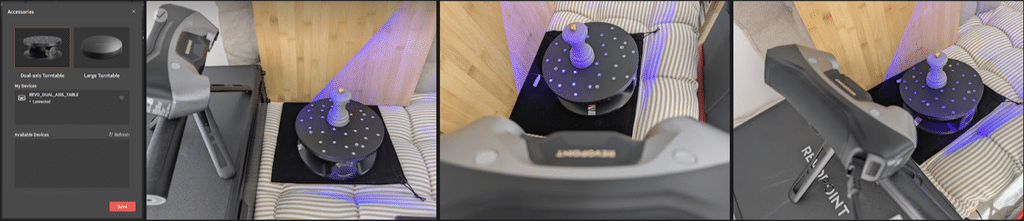
In practice (this is an observation from our tests), the workflow is smoother and capture quality improves. We have not quantified that improvement with measurements, so we are giving it as a hands-on impression rather than as data.
Revo Measure is Revopoint’s measurement and dimensional inspection software. It measures dimensions (lengths, angles, volume), applies GD&T (geometric tolerancing), analyses the deviation between the scan and a CAD model, and lets you create and measure cross-sections. Results can be exported to PDF with measurements, deviation charts and colour maps.
There are two versions, and it is worth telling them apart before relying on them for inspection:
- Revo Measure Basic: free and with no activation required, but without CAD import, full GD&T or PDF export.
- Full Revo Measure: paid licence, with CAD import, GD&T and PDF export. Check the price on the official store.
On the MetroY Ultra, the model created in Revo Metro is imported into Revo Measure with one click; we have not checked this on the MetroY Pro. It requires Windows 10/11.
Revopoint MetroY Pro performance and testing
These are the tests we are running with the MetroY Pro:
- Calibration: warm-up time and duration of the full process
- Accuracy: reference part with known dimensions, scanned in parallel lines, crossed lines and full field, with several repetitions on different days
- Fine detail: printed part with text and small raised features, comparing the three modes
- Difficult surfaces: machined metal and glossy black plastic, first without spray in laser mode and then with spray
- Holes and slots: single line vs parallel lines on a part with deep cavities
- Auto turntable and colour: the included bust and one of our own parts, with total capture time
- Wireless use: Mobile Kit and Revo Mirror, Wi-Fi stability and lag compared with a cable
- Software: FPS, perceived lag, processing times, crashes and marker cleanup in the final mesh
- Real project: reverse engineering a part to redesign it and 3D print it
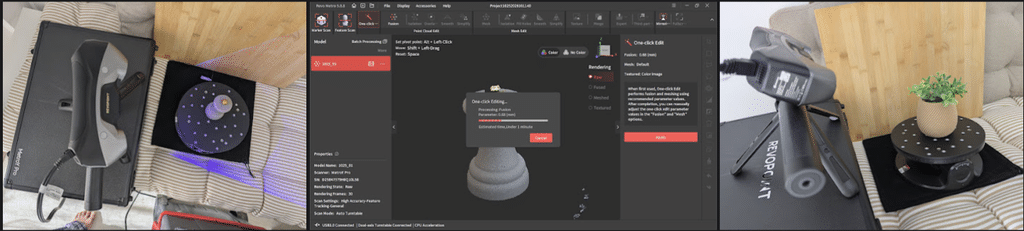
We have spent weeks scanning small parts, technical parts and medium-sized smooth surfaces with the MetroY Pro.
For accuracy, we measured with reference ball bars: most of the MetroY Pro’s measurements were within ±0.03 mm, with two measurements on the short bar slightly out of spec.
Fine detail is where it fares worst. Small raised features and text come out softer and frayed edges appear on sharp edges. The resolution setting does not go below 0.15 mm, and on a clothes peg it captured hardly anything until we turned the laser brightness up a lot.
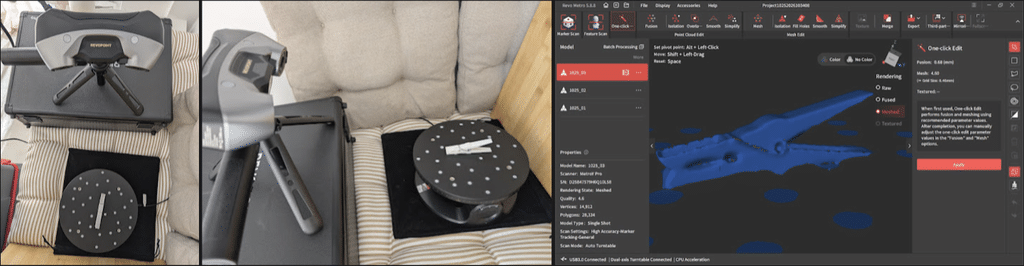
Where it wins is on the decorative metal vase: smoother surfaces, more overall detail and a better result on this reflective surface.
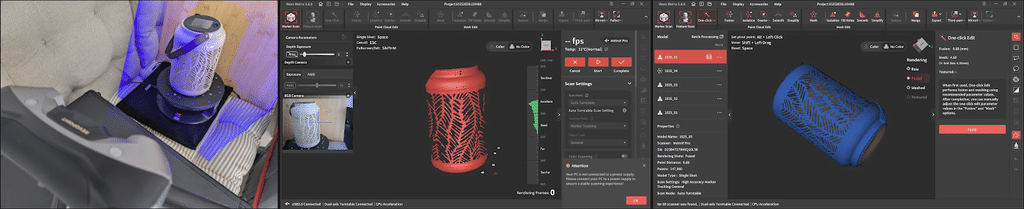
Other drawbacks we found: Revo Metro leaves marker remnants in the final mesh, full-field mode loses a lot of detail on technical parts without preparation, and the auto turntable falls short for complicated parts. And, above all, the software lag, which is what bothered us most, although, as we mentioned, it was more annoying when our computer had fewer resources, something that cannot be blamed on the MetroY Pro.
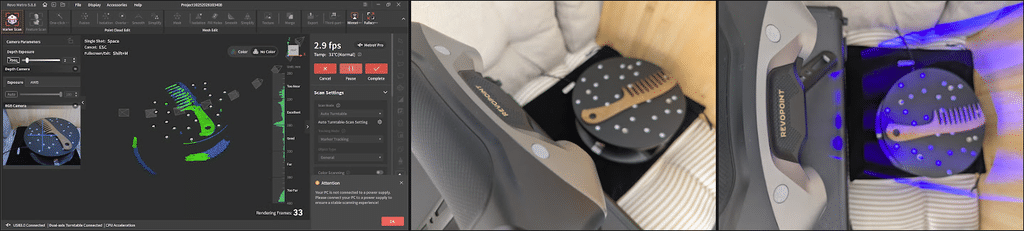
On the plus side, we would highlight the speed in crossed-lines mode and the quality on a perforated nozzle and some metal slots scanned without spray. Colour with the turntable works very well if the room is well lit. On the downside, the number of markers it needs and the texture limitation when merging.
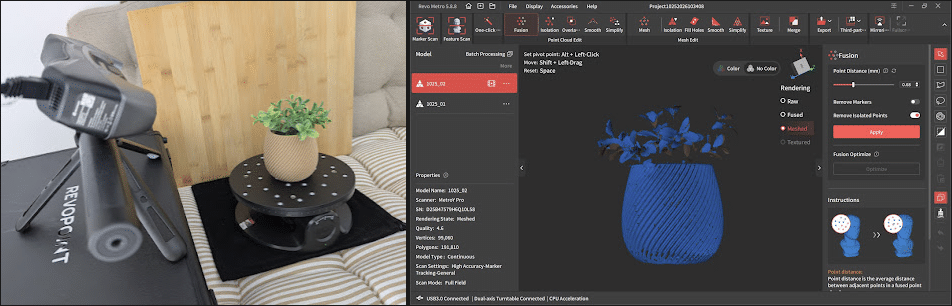
With the turntable and well-prepared objects, the results are very detailed, but handheld we have had tracking losses even with markers. They usually come down to calibration, lighting or exposure. The MetroY Pro only performs at its best when the setup, the environment and the settings are right, and the learning curve is steep because the software does not guide you in choosing the mode.
Where to buy the Revopoint MetroY Pro
The Revopoint MetroY Pro is sold on the official Revopoint store, which also has the base MetroY and bundles with Revo Measure, Revo Design, Revo Design Pro or Geomagic Design X Go. As Revopoint often changes its promotions, we prefer not to give figures: check the current price directly on its website. These are the options for getting hold of one:
| Revopoint MetroY Pro |  |  |
| Revopoint MetroY | | |
| Revopoint MetroY Ultra | | |
If you buy directly from the Revopoint website, you can use the code BR3DWORK to get an extra 2% discount on your purchases as part of the 3Dwork family.
Revopoint MetroY Pro: final verdict
In terms of hardware, the MetroY Pro is the most complete Metro Revopoint has made so far. More lines, more speed, single-line mode, Wi-Fi and a kit with everything you need to work on the desk or handheld. In our measurements, accuracy is close to what the spec sheet promises.
The question mark is the software. We have had lag, crashes and demanding handling. The good news is that these are things that will probably be fixed with updates, and Revopoint is a brand that has not let us down in this respect. We will keep checking it with each new version of Revo Metro.
From what we have seen so far, it suits engineering departments, engineers and advanced makers who need reverse engineering or dimensional inspection of small and medium-sized parts, have a PC with a powerful NVIDIA graphics card and are willing to learn. It is not for anyone looking for something “plug and play”, anyone who wants to scan people, or anyone who will be working with a modest laptop or an AMD graphics card.
Revopoint MetroY Pro FAQ
Does the MetroY Pro need a computer?
Yes. All processing is done on a PC or Mac running Revo Metro, connected via USB or Wi-Fi. The phone only works as a screen through Revo Mirror.
Does it have a battery?
It has no internal battery. It is powered by its mains adapter or, for wireless use, by the Mobile Kit grip or a power bank.
What is the difference between the MetroY and the MetroY Pro?
The MetroY is laser only, with 30 crossed lines, 15 parallel lines and a single line, up to 1,500,000 points/s and no colour. The Pro goes up to 34 crossed lines and 2,000,000 points/s, adds 62-line structured light, the auto turntable mode with colour and feature tracking, and includes a turntable, tripod, bust and Mobile Kit.
What does it improve over the METROX?
More laser lines (34 crossed and 15 parallel vs 14 and 7), single-line mode, more than twice the laser speed, Wi-Fi 6 and external battery power. Structured light stays at 62 lines and 7,000,000 points/s.
Do you need scanning spray?
It depends on the surface and the mode. On transparent or specular surfaces (glass, stainless steel, chrome), always. On dark reflective or metallic surfaces, the laser modes can work without spray, but structured light and the auto turntable need it.
Can I scan people?
Revopoint does not recommend scanning faces in any mode because of the laser risk to the eyes. Other parts of the body are fine, at normal distance. For people, the brand recommends the INSPIRE 2, the MIRACO or the POP 3 Plus.
Does it scan in colour?
Yes, with its 2 MP RGB camera, but directly only in auto turntable mode. When you merge textured scans made in other modes, the texture is lost.
What software does it use, and do you have to pay for it?
It uses Revo Metro, free and offline, to scan, edit, merge and export. Revo Measure, Revo Design and Geomagic Design X Go are optional and sold separately.
What formats does it export?
PLY, OBJ, STL, ASC, 3MF, GLTF and FBX. Models can be 3D printed directly.
Does it work on a Mac?
Revopoint publishes requirements for macOS (M2 Pro minimum and M4 Pro recommended), although its list of supported systems marks macOS 11.0 as “coming soon”. Also, GPU acceleration does not work on Mac for now.


