

Greetings, 3Dwork community! We’ve been working for a few weeks on different projects/reviews that we’ll be releasing in the coming weeks.
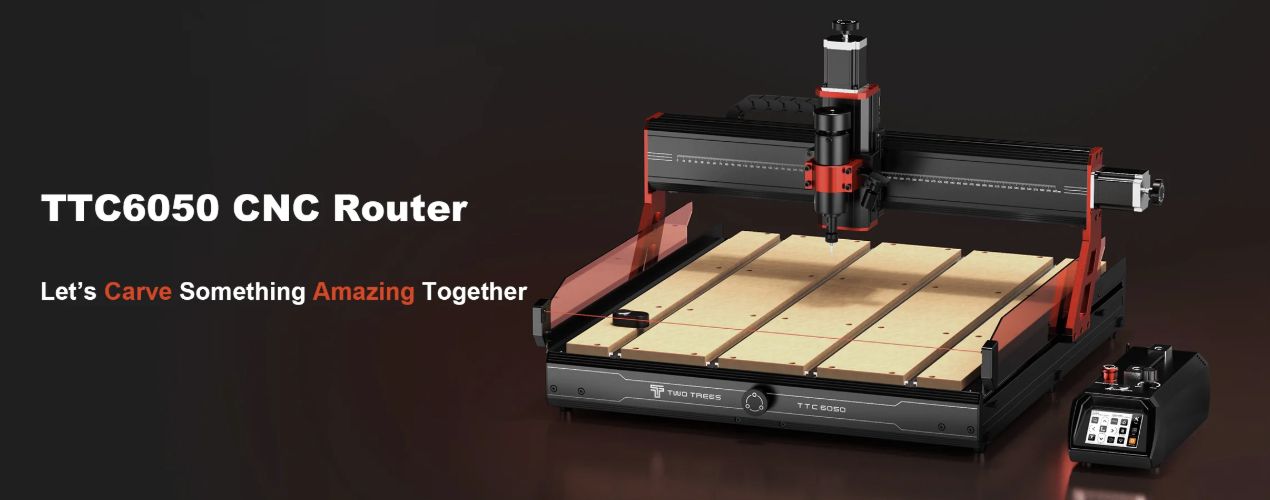
If you are one of those who think that the maker world ends at filament or resin, get comfortable because today we bring you an analysis of those who leave a mark… Literally!!! In our workshop, we had the pleasure of testing the TwoTrees TTC6050, the big sister of the TwoTrees family that promises to take desktop machining to an almost industrial level.
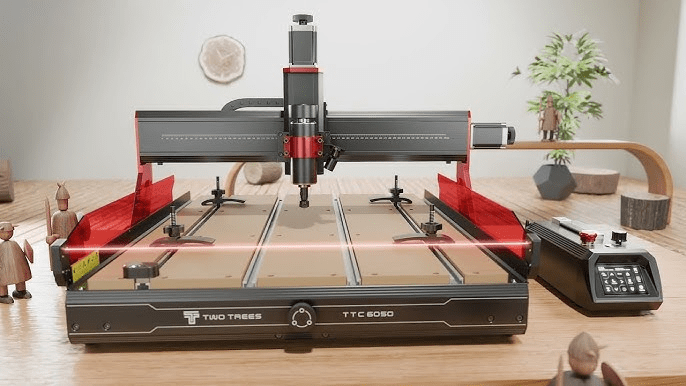
After weeks filling the workshop with shavings, here is our in-depth review of the TwoTrees TTC6050 which we already gave you some hints about in our article from Formnext 2025. Let’s start!!!
TwoTrees TTC6050
We will start by clarifying that the TwoTrees TTC6050 is not a toy, and this is evident from the moment you try to move the box by yourself, as a spoiler… something we do not recommend. We are dealing with a 3-axis machine with an aluminium structure and components that are usually found in much more expensive machines.
If we compare the TTC6050 with its smaller sisters, the first thing that stands out is that TwoTrees has abandoned the purist hobby components to embrace an almost industrial construction. We are facing a machine that weighs 35.9 kg (almost double that of the TTC 450 Pro), which gives us a hint about the massiveness of its aluminium structure.
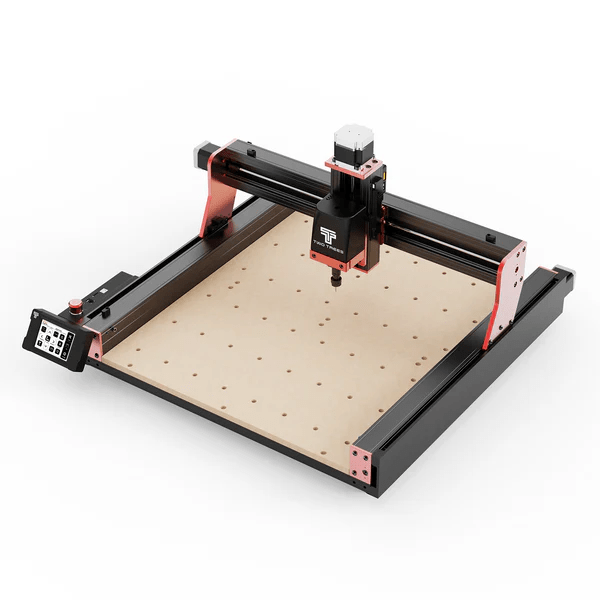
To show you where this beast is located, we have prepared this direct comparison based on official data:
 |  TTC 450 Pro | 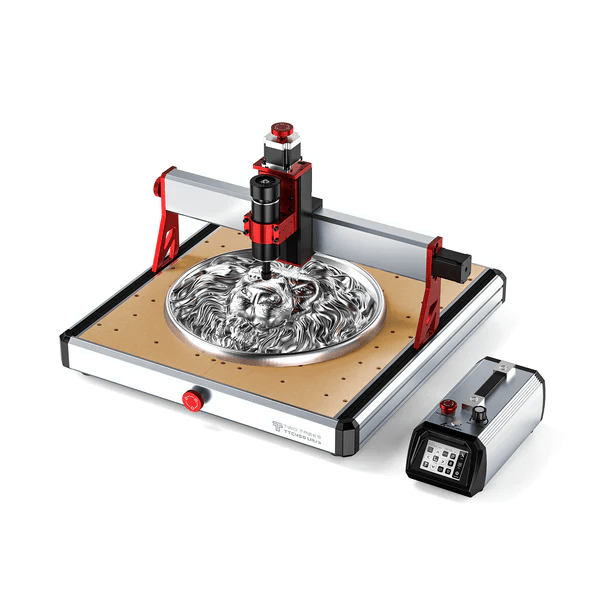 TTC 450 Pro | 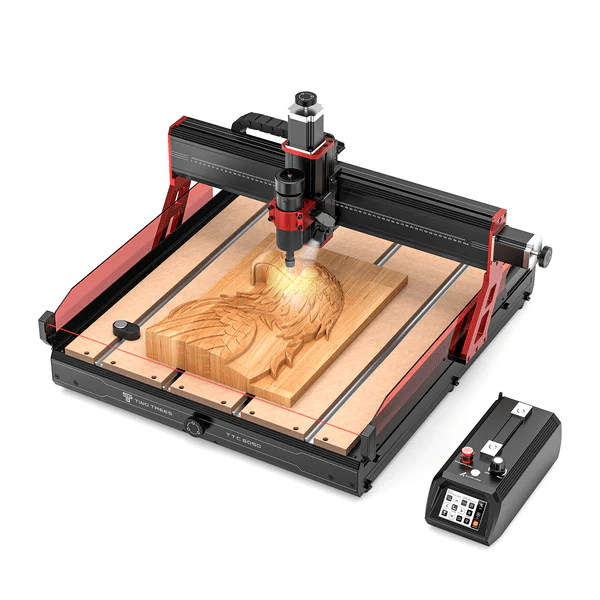 TTC 6050 |
|---|---|---|---|
| Engraving Area | 460x460x80 mm | 460x460x100 mm | 600x500x100 mm |
| Power | 500W | 500W | 500W (Upgr. 800W) |
| Engraving Speed | 800 mm/min | 800 mm/min | 5000 mm/min |
| Transmission | T8 4mm Screw | T8 6mm Screw + 12H Linear Rail | Ball Screws + Linear Guides |
| Peso | 19 kg | 19kg | 35.9 kg |
| Público Objetivo | Hobby | Hobby Advanced | Producción / Pro |
But let’s analyse, on paper, the characteristics of this TwoTrees TTC6050 since it will give us a better idea of its features.
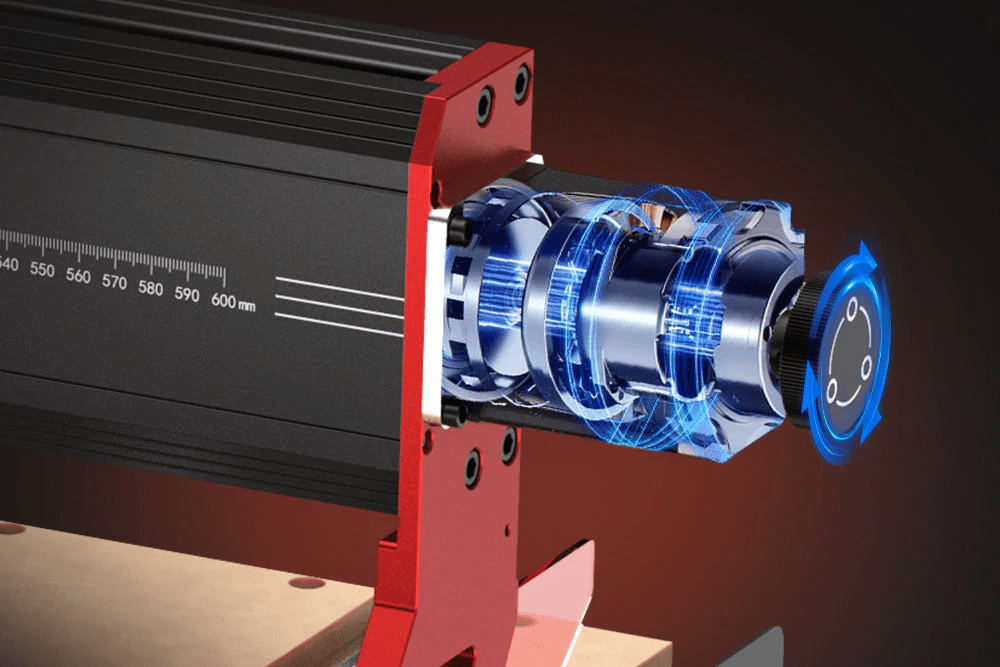
Its mechanics are where the TTC6050 justifies every euro. While economical machines use belts… which suffer from stretching, require regular changes or imprecision… or T8 spindles… which normally have play or backlash… the TTC6050 mounts high-resistance C7 ball screws on the three axes. As a technical detail, the Y-axis spindle has a 16 mm thickness with a flat thread, specifically designed to exert massive pushing force without deforming.
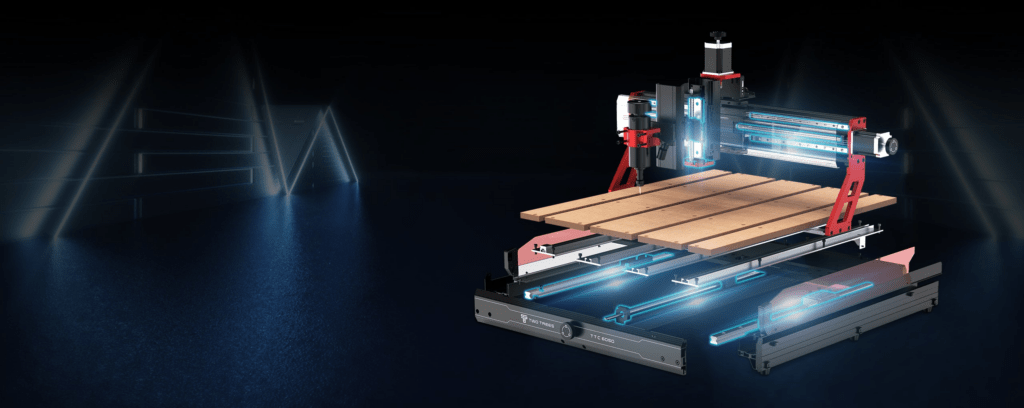
This is combined with steel linear guides (instead of plastic wheels), which eliminates vibrations and allows for precise cuts even in hard materials such as 6061 aluminums or stainless steel.
We also have powerful and precise motors to move that kinematics in any condition, whether in cutting or engraving at up to 5000 mm/min, and they also incorporate a convenient system for manual movements for precise adjustment.
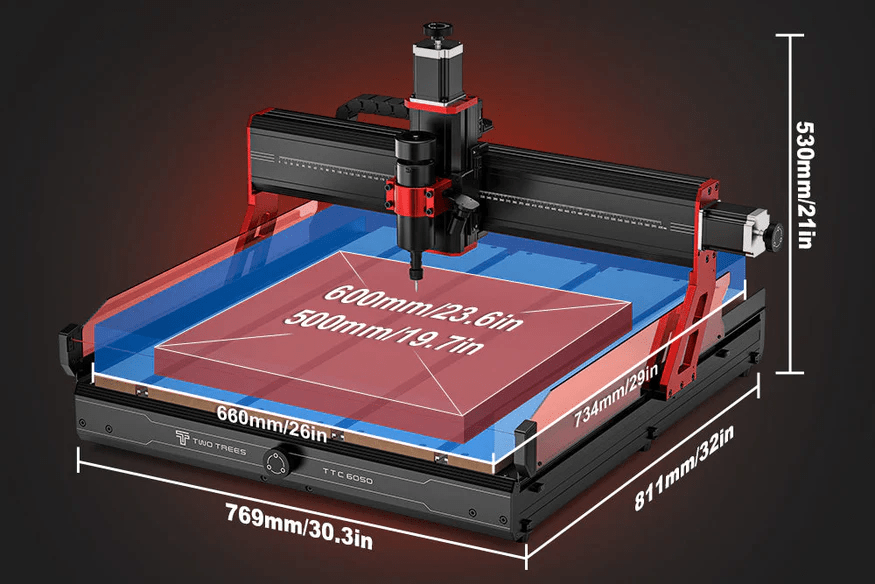
All of the above allows us to work precisely in an engraving area of 600 mm( 23.6in ) x 500 mm(19.7in ) x 100 mm( 4in ), which offers us great versatility to work on all kinds of projects, both engraving and cutting… our imagination will be the limit with this TwoTrees 6050!!!
The machine comes standard with an air-cooled 500W motor that reaches 12,000 RPM. It is ideal for wood, acrylic, and soft metals.
If you need real production, TwoTrees offers an 800W kit that reaches up to 30,000 RPM. This motor allows for much faster progress and handling larger diameter bits, although it requires an external controller and manual speed adjustment via a 6-level dial.
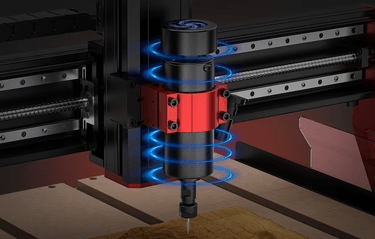
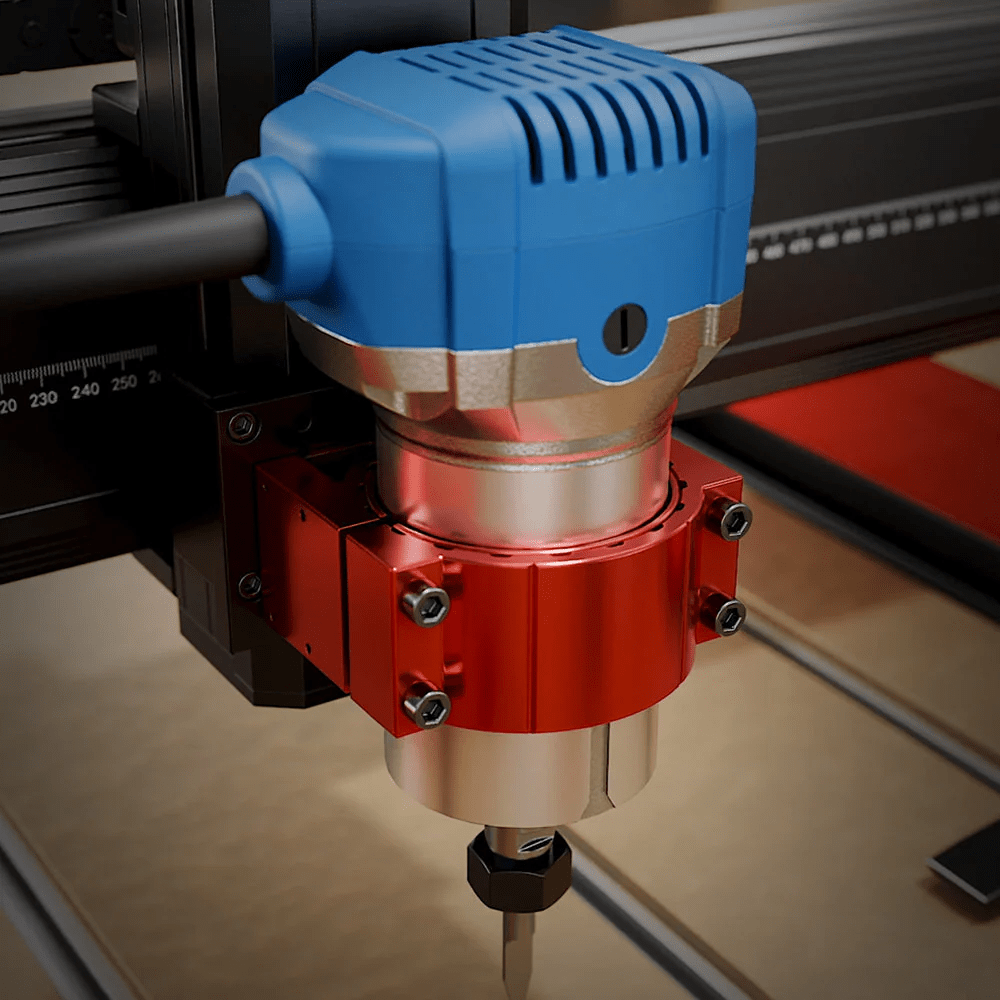
With all this, the TwoTrees TTC6050 will allow us to work with a wide range of materials such as plywood, MDF, solid wood, acrylic, carbon fibre, aluminium, copper, or stainless steel among others.
Another aspect we loved about the TwoTrees TTC6050 is that it includes a external control unit with a 3.5-inch capacitive touch screen. It is the brain of the machine, and its firmware uses GRBL with support for CNC and laser, being compatible with much software such as VCarve, Fusion 360, Easel, Carveco.
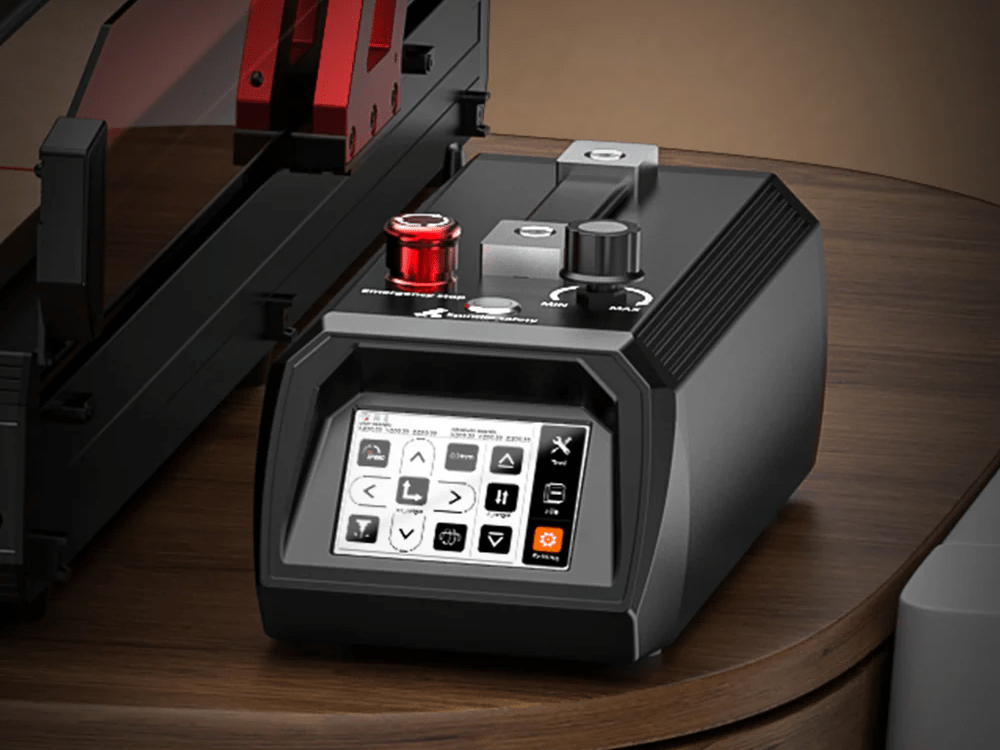
It has Wi-Fi, USB port, and SD card slot. In our tests, the ability to load the G-Code directly from the SD and control the progress without a PC exposed to workshop dust is a huge competitive advantage.
It has an improved UI/interface that, among other things, allows real-time adjustment of the feed rate (feed rate) up to 200% while the machine is cutting, which is vital when you hear the cutter struggling. Additionally, we have physical buttons for spindle control and emergency stop.
TwoTrees has paid special attention to safety, something critical in this type of machine, integrating functions that were previously homemade modifications at the user’s hands.
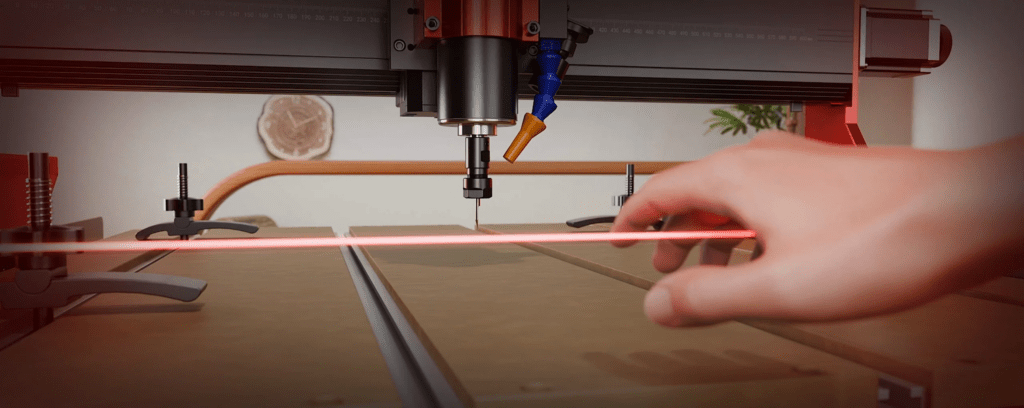
We have infrared sensors: located at the corners, they stop the machine in less than a second if they detect an obstacle (like your hand) in the work area. The work can be resumed from the screen without losing the ongoing job.
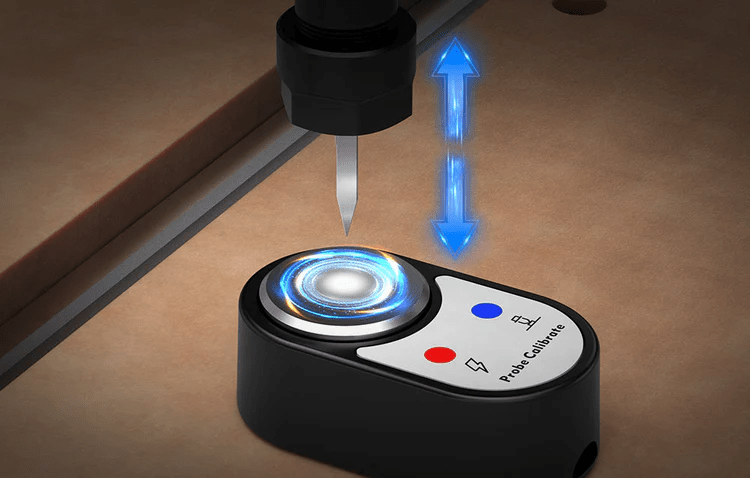
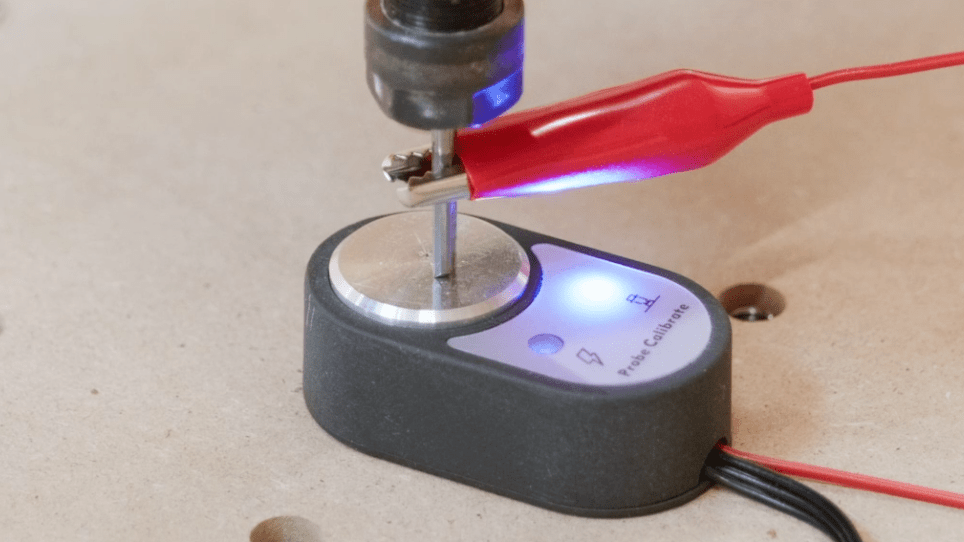
Another aspect to highlight is the inclusion of a Z-probe sensor that will greatly facilitate the precise and quick adjustment of 0 in Z, for the other axes we have limit switches.
In terms of extensions/upgrades and apart from the 800W spindle, we have:
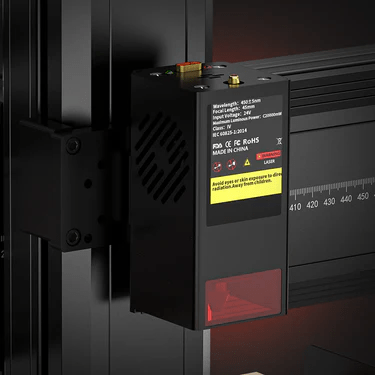
- 20W Laser Module: The board is fully compatible with the brand’s laser head. You can swap the spindle for the laser in a few minutes for fine engraving or cutting soft materials.
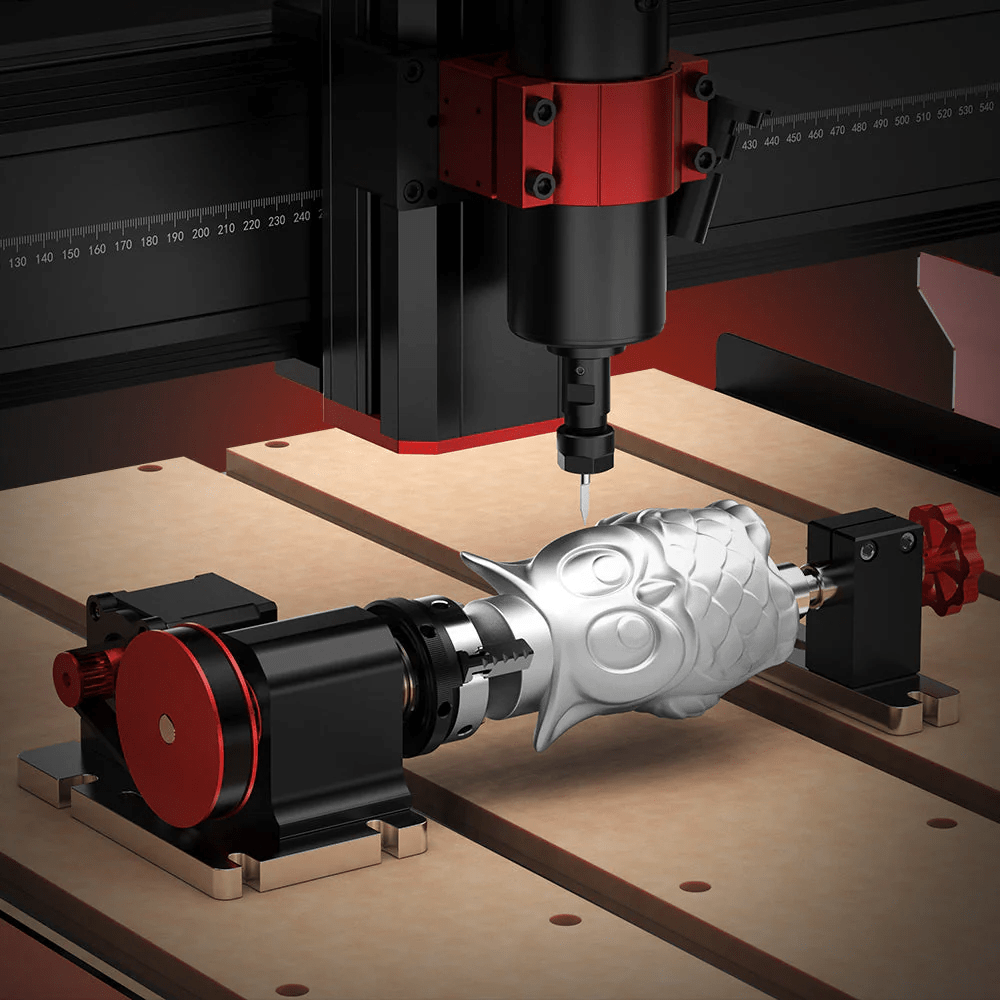
- Fourth Axis (Rotary): The machine is prepared to connect a rotary axis, allowing machining of cylinders (such as baseball bats or cups) with ease:
One thing we liked that differentiates it from other machines with bare aluminium bases is that the TwoTrees TTC6050 features an MDF sacrificial panel system mounted on T-slots.
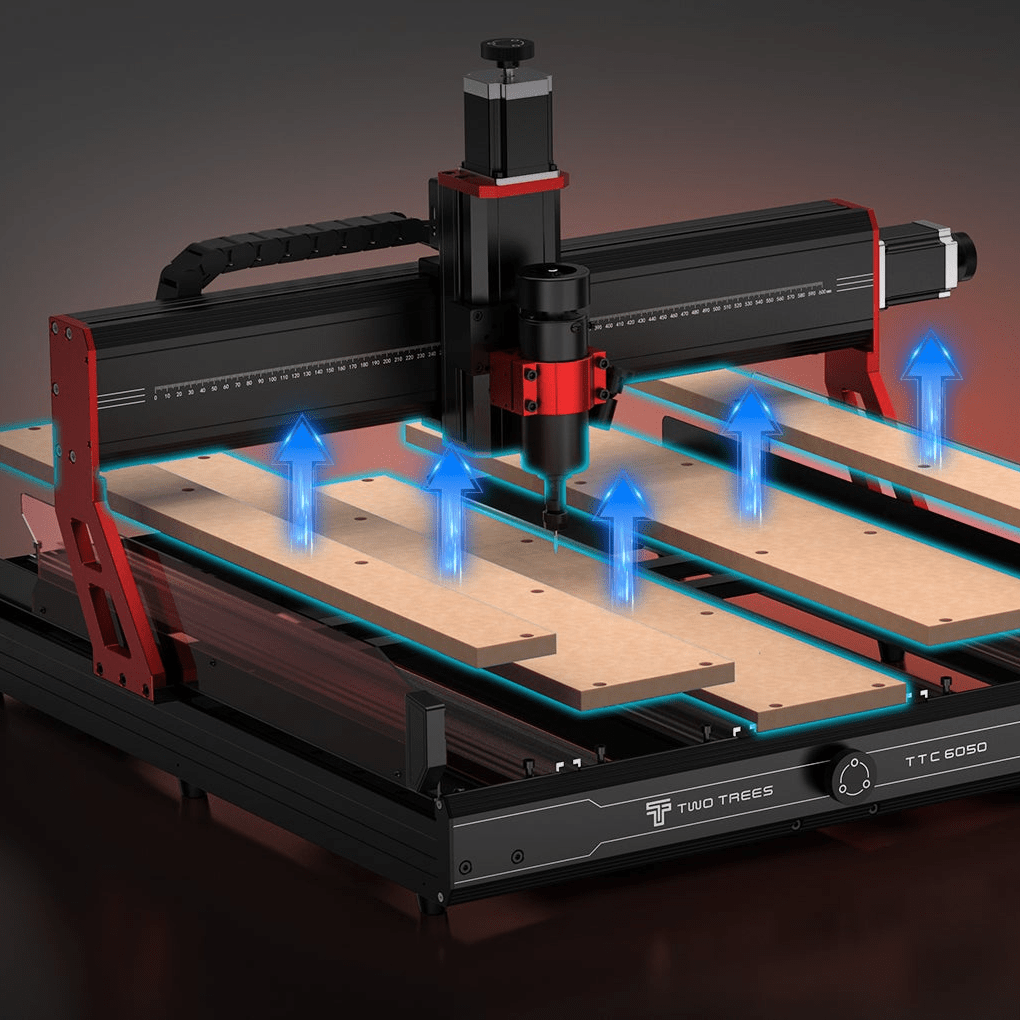
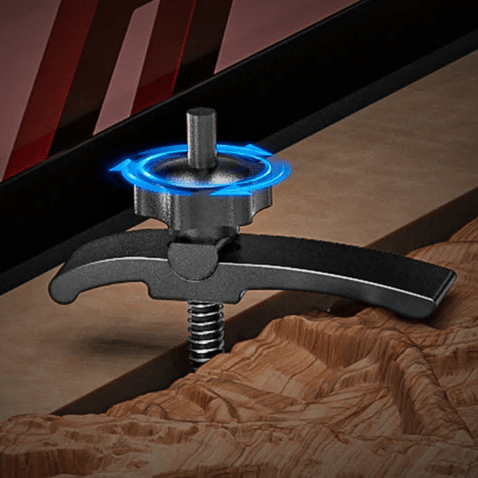
This allows you to screw pieces directly or use the 4 included aluminium clamps without fear of damaging the main structure of the machine. When the MDF is heavily worn, it is replaced with standard hardware store parts… and you have a new table!! Although it is always advisable to use sacrificial parts.
Basic CNC Concepts: an essential beginner’s guide if you’re new to this world
To master the TwoTrees TTC6050, it is not enough to know how to turn it on; you must understand the “language” of machining. At the 3Dwork team, we know that the leap from 3D printing to CNC can be dizzying, so we have broken down this didactic guide with steroids and in the simplest way possible so that you get the most out of it.
Unlike our beloved 3D printers that add material, here we practice subtractive machining: removing the excess from a solid block to reveal the piece. This process is divided into three critical stages:
- CAD (Computer-Aided Design): Where you draw your part in 2D or 3D.
- For beginners: We recommend Easel, which is ridiculously simple and web-based.
- Para pros: Onshape o Fusion 360 es una buena alternativa fácil y relativamente sencilla; permite modelar desde un engranaje hasta un motor completo, integrando el diseño con la fabricación en una sola aplicación.
- CAM (Computer-Aided Manufacturing): This is where the magic happens, as the software translates your drawing into G-Code… which are nothing more than movement coordinates (X, Y, Z) and speed commands… the TwoTrees TTC6050 stands out here for its compatibility with VCarve, Easel, Carveco Maker, and Artcam among others.
- CNC (Numerical Control): It is the physical machine itself that interprets that code. Thanks to its 3.5″ touchscreen controller, you can run the job directly from an SD card without having a PC gathering dust in the workshop or monitoring remotely.
Now that we have an idea of the general steps to follow to use our CNC, let’s focus a bit on the hardware part by reviewing its main components.
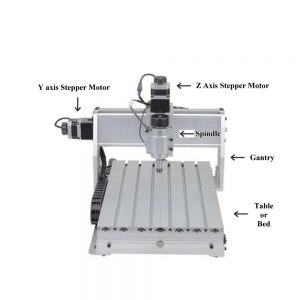
- Platform: We are talking about the part where we will place our material to be worked on with our CNC. Usually, there are anchors for fixing, or they are fixed directly.
- Gantry: It is the platform where the cutting/engraving head is located.
- Spindle/Router/Tool: It refers to the cutting motor or a tool such as a laser that is responsible for working on the material.
In the case of using a spindle/router, it usually has a milling cutter or tool, which is attached to the motor via a collet or milling clamp. - Motors: They are the motors that allow moving the CNC kinematics in its different axes
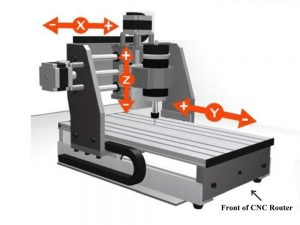
Regarding the motion axes:
- X: Controls the left-right movement of the head.
- Y: Forward-backward movement of the table or the gantry.
- Z: Up-down movement, which determines the cutting depth.
The safety is an essential aspect when operating this type of machine, so we must take a series of personal and environmental measures:
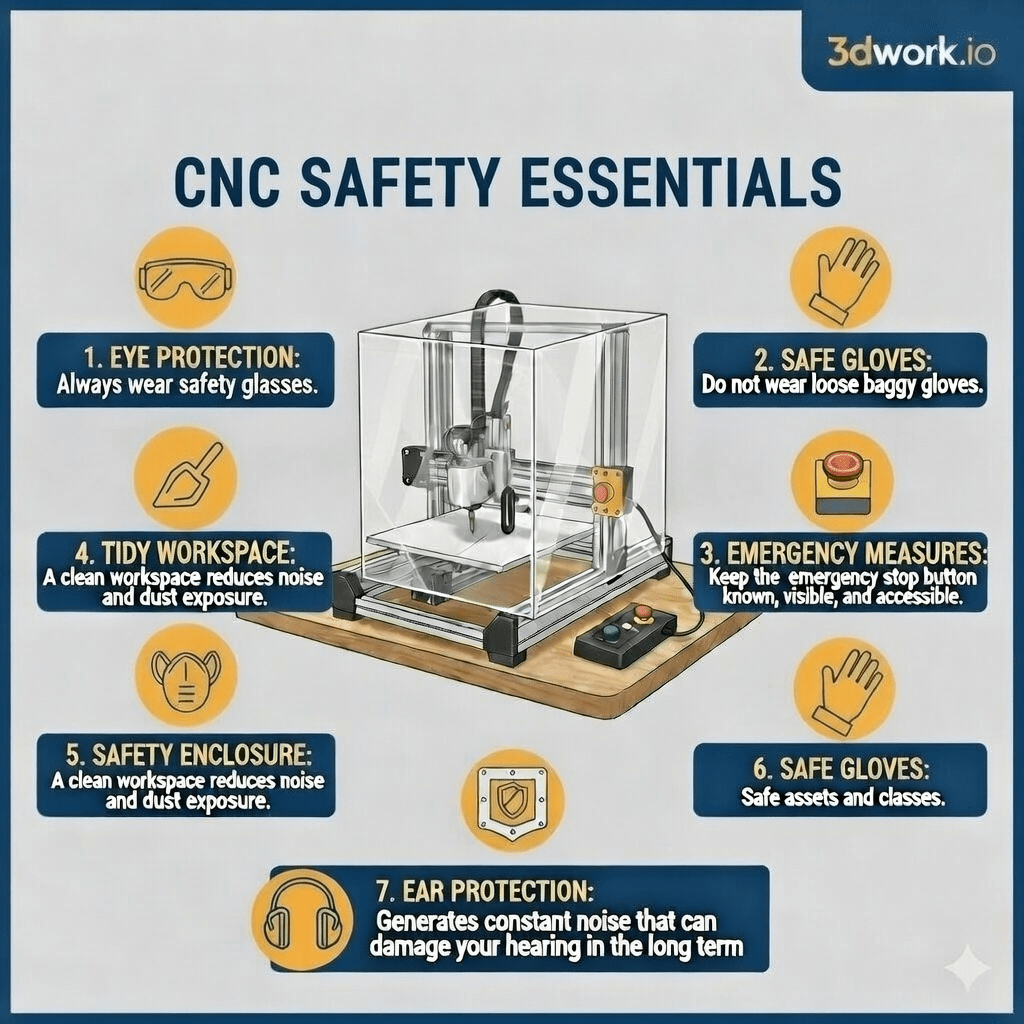
- Always wear eye protection, metal or wood shavings can jump at high speeds, so never operate a CNC machine without protective glasses!!!
- Protect your ears; a spindle spins at high speed generating a constant noise, especially when in contact with material, and can damage your hearing in the medium/long term.
- Wear a mask; the dust generated by many of the materials we work with can be toxic and irritating, so always wear a particle mask suitable for the work material.
- The use of gloves will prevent possible cuts.
- Emergency shutdown always accessible, keep the emergency shutdown control always at hand!!!
- Cleaning!!! Always keep the workspace clean as much as possible. The use of a safety enclosure, as well as a suction system on the CNC head will actively contribute to a clean work area.
We can also use the suction system itself after finishing the work to clean other areas with debris. - Material anchoring: Make sure that the pieces we work on are firmly held, in the case of the TwoTrees TTC6050 we have four included aluminium clamps.
!!! Keep in mind that if a piece comes loose in the middle of a cut/engraving, it can be ejected like a projectile!!! - Simulate the project before launching it, run the program with the spindle turned off and the cutter a few centimeters above the material. This allows you to verify that the trajectory is correct and that you will not collide with the clamps.
Not all tools/bits are suitable for everything. The TwoTrees TTC6050 uses an ER11 collet chuck, which allows us to use tools with shank diameters ranging from 0.5 mm to 7 mm (with 1/8″ being the most common as standard).
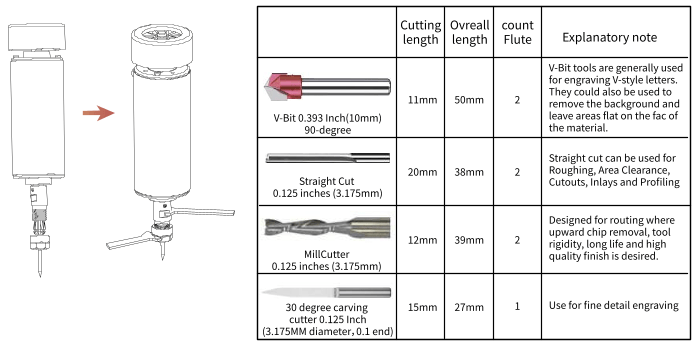
- V-Bits (V-shaped router bits): Essential for engraving text and fine details. Having a pointed tip, the deeper they go, the wider the cutting line will be. They are ideal for creating signage with a professional finish.
- Straight Cut: The Swiss knife for trims, hollowing, and inlays. It leaves the walls of the cut perfectly vertical.
- Ball-Nose: Essential for 3D reliefs and curved surfaces. Being rounded, they remove material leaving a smooth finish on organic shapes.
- Upcut vs. downcut router bits: The upcut bits remove chips upward (ideal for heat evacuation in metals or plastics), while the downcut bits push the material downward to prevent the wood fibres from splintering on the surface.
With this information, we already have a minimal basis to start our TwoTrees TTC6050. In any case, we recommend reviewing the manual and documentation of TwoTrees for more information and details on safety measures to consider.
TwoTrees TTC6050 unboxing and setup
Assembling the TwoTrees TTC6050 is, in itself, a rite of initiation for any serious maker. Forget about the quick setups of a few minutes that some 3D printers have; here we are facing a a task that requires patience, space, and, preferably, a couple of extra hands.
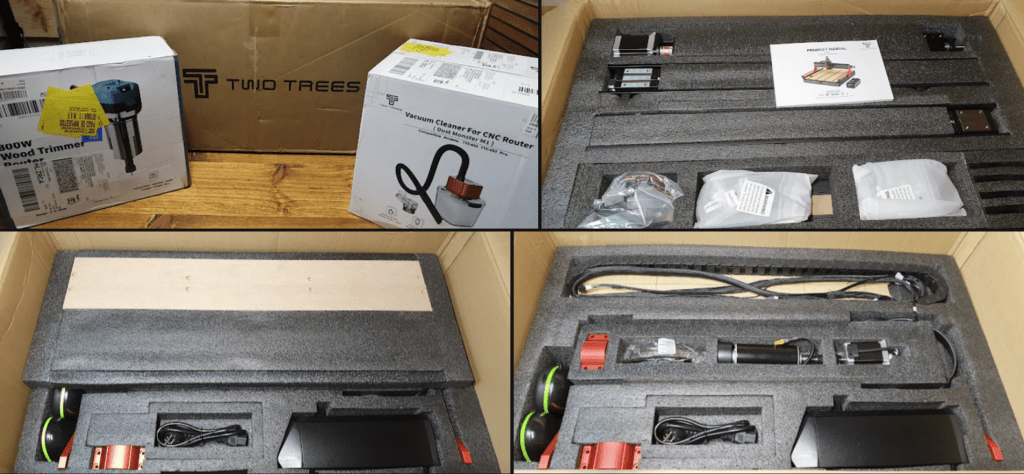
The machine arrives protected in a large and heavy box (around 35.9 kg to 40 kg in total), conveniently protected to withstand the rigours of transport. Additionally, in our case, we also have the most powerful spindle of 800 W and the vacuum cleaner, both from TwoTrees.
Inside, we will find a deployment of components that makes it clear that this is not a toy: the structure is 95% disassembled, which means you will see every screw and profile that makes up the machine… The good news is that they are well labelled, and the manual is quite understandable.
Contents of the TwoTrees TTC6050 kit:
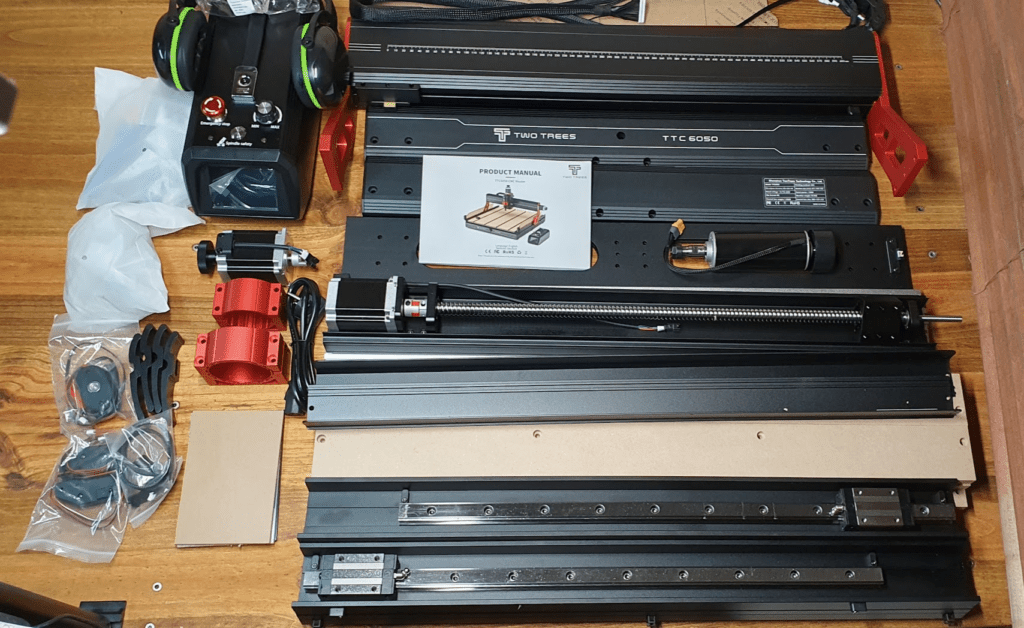
- Extruded aluminium profiles for the chassis.
- Stepper motors NEMA 23 with their corresponding ball screws and linear guides, all except the Z-axis one pre-installed.
- External control unit with a 3.5″ touchscreen.
- 500 W Spindle (and 800 W if you ordered the pro combo).
- Protection kit: Safety glasses and hearing protectors (a detail from TwoTrees that we love).
- Essential accessories: 4 aluminium clamps, Z probe, limit switches, and a selection of basic end mills.
Although the manual is well illustrated, and we will provide a video later, we recommend reserving between 2 and 4 hours. Here are the steps we follow:
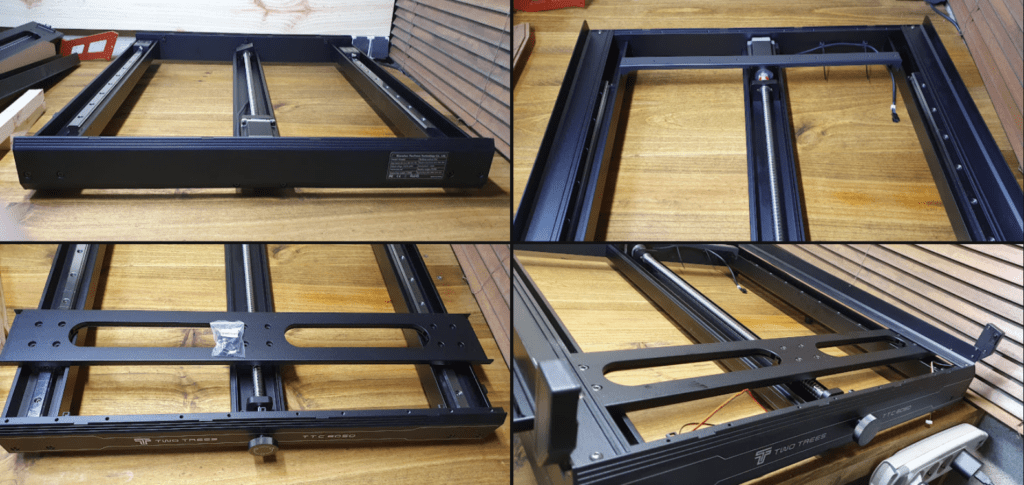
- Structure of the base (Y axis): The Y axis support and the front and rear panels are assembled first, using alignment pins to ensure everything is perfectly squared.
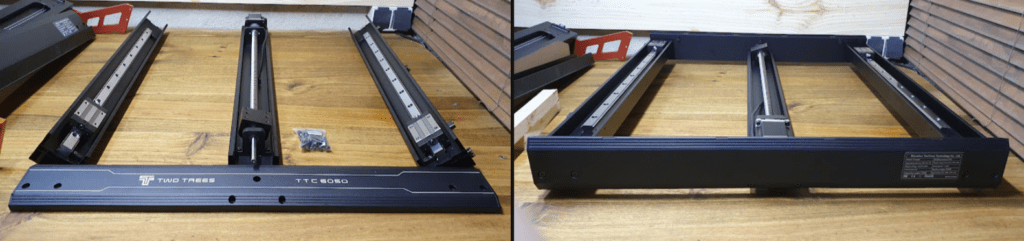
- Transmission and handwheels: The ball screws and manual handwheels are installed. Recommendation: Make sure that the clamping screws of the couplings fall on the flat part of the motor shaft to prevent slipping under load.
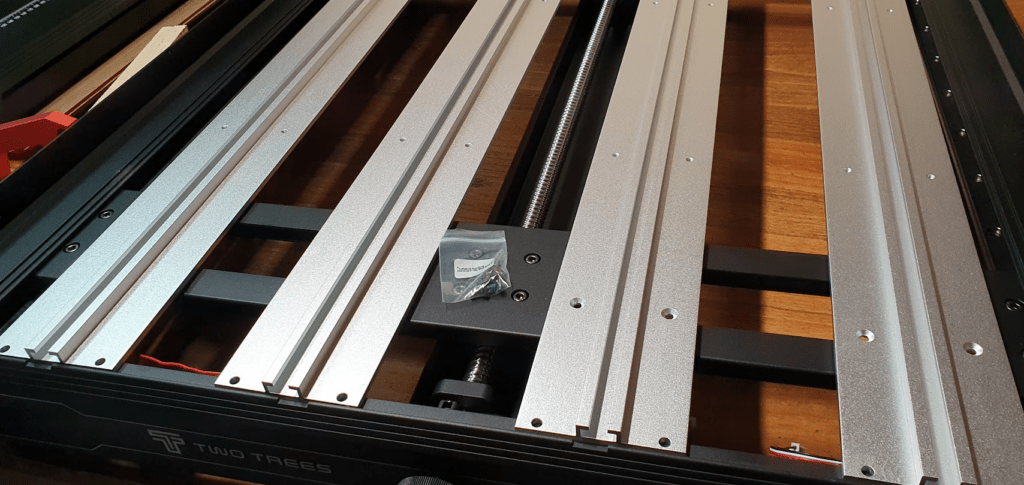
- The work platform: The profiles are mounted in T and, on top of them, the 5 MDF panels.
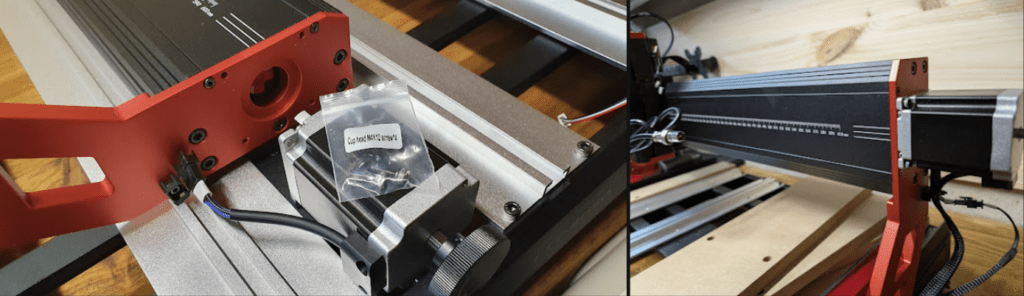
- Axis X and gantry: The assembly of the X axis requires special attention to the cable chain supports to avoid future snags.
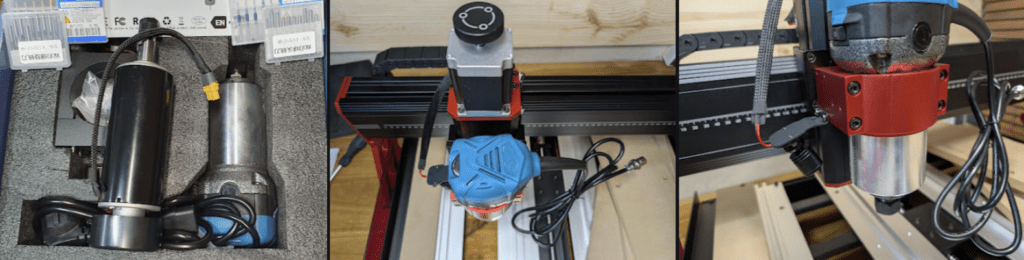
- Z axis and spindle: Finally, the Z axis assembly is coupled and the spindle is inserted into its support. If you are going to install the laser module, this is the time to decide whether to swap the heads.
- Control unit and wiring: As the last step and one of the most important, we will connect all the wiring to the control unit to complete the installation.
Next, you have a summary video of the entire process; we recommend using it together with the installation manual and following step by step:
In the following image, you have all the parts of our TwoTrees TTC6050 as a reference:
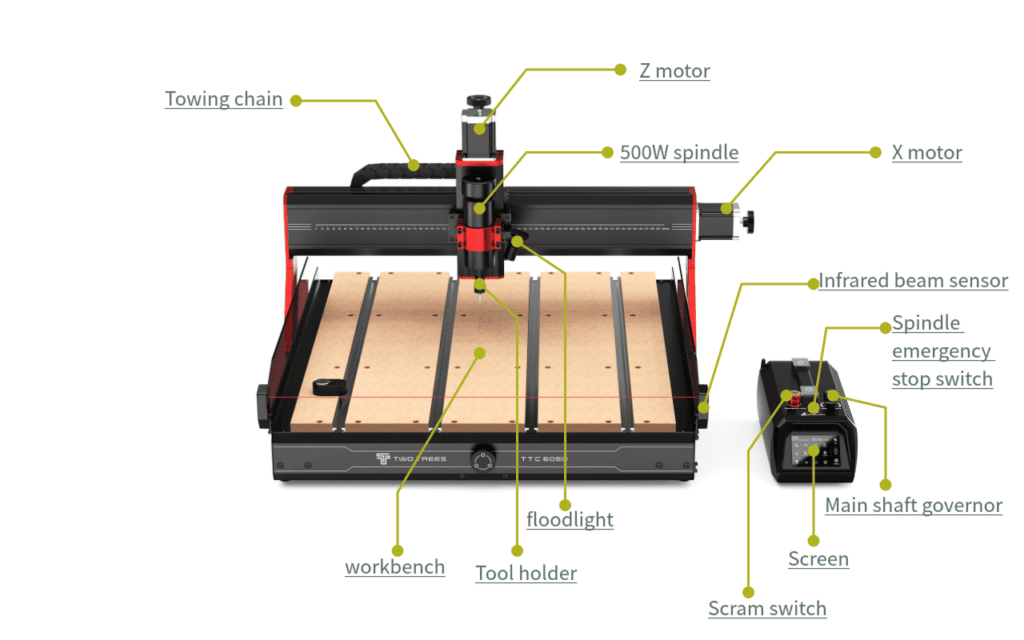
The time has come to start our TwoTrees TTC6050!!! There isn’t much left before we can begin launching our projects.
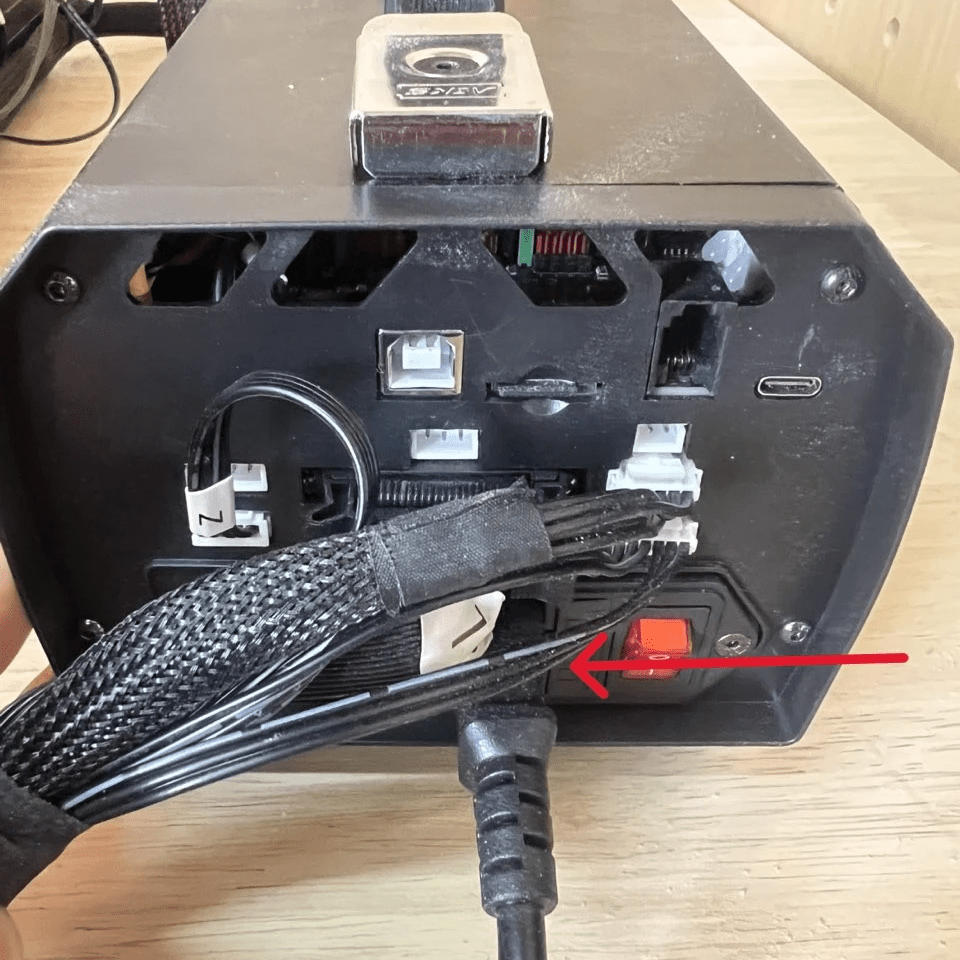
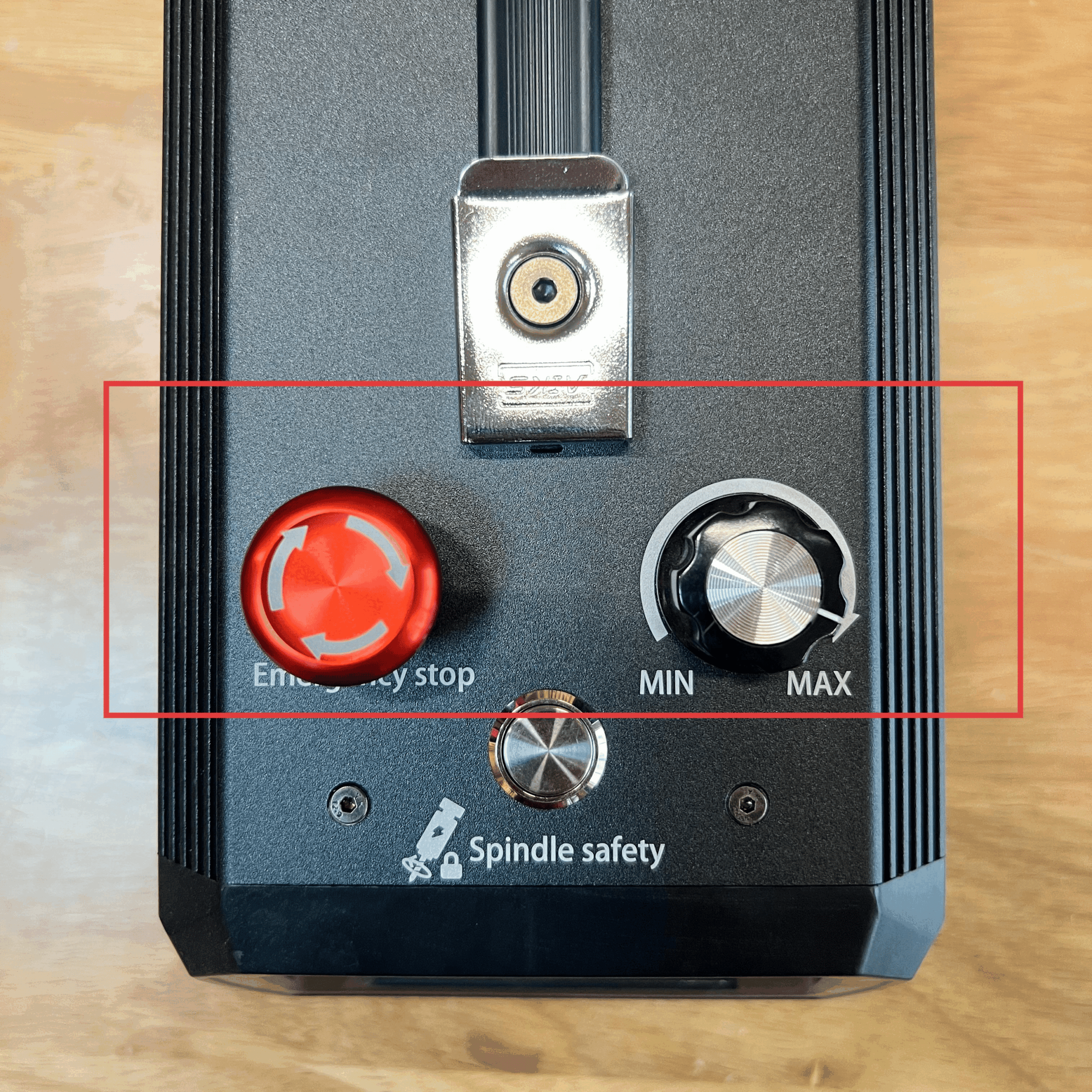
Startup /Power on: simply connect the power supply to the control unit and set the power switch to the ON position. Once we have power, verify that the red emergency stop switch at the top of the control unit is open and ensure that the spindle speed adjustment potentiometer has been set to the appropriate value for the material to be worked on.
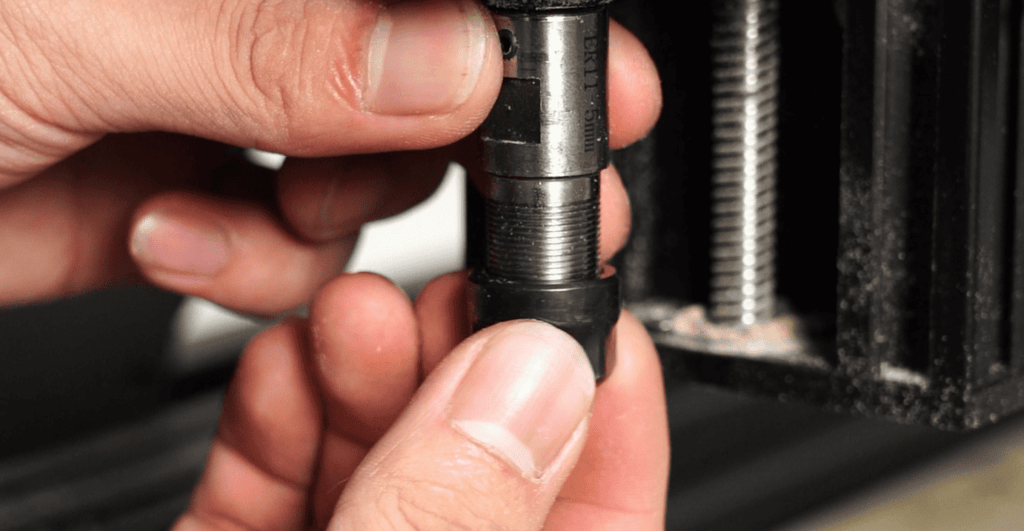
Next, considering the work to be done, install the cutter/tool in the spindle. Loosen the ER11 collet holder, place the cutter/tool, and with the two included wrenches, tighten the assembly firmly. It is essential that everything be securely fixed!!!
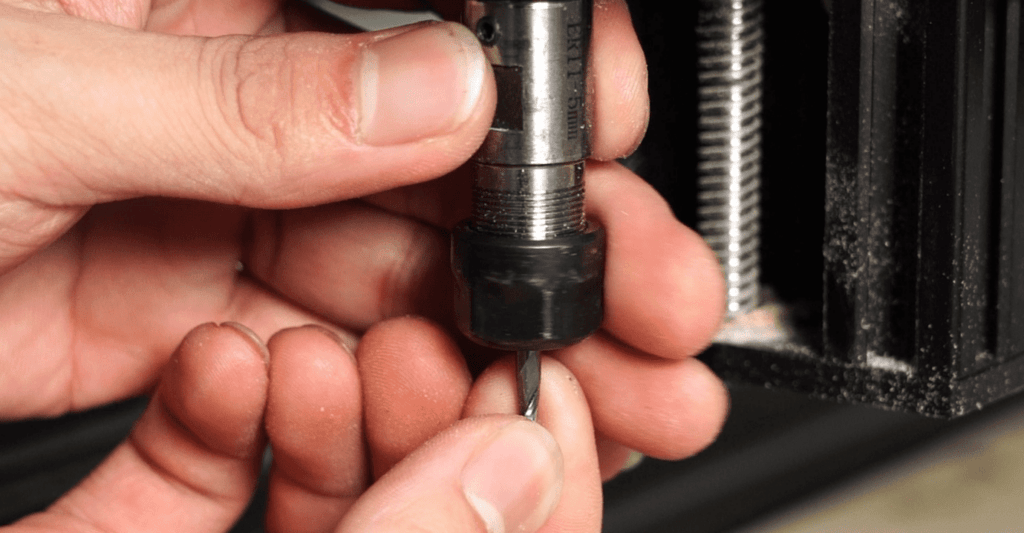
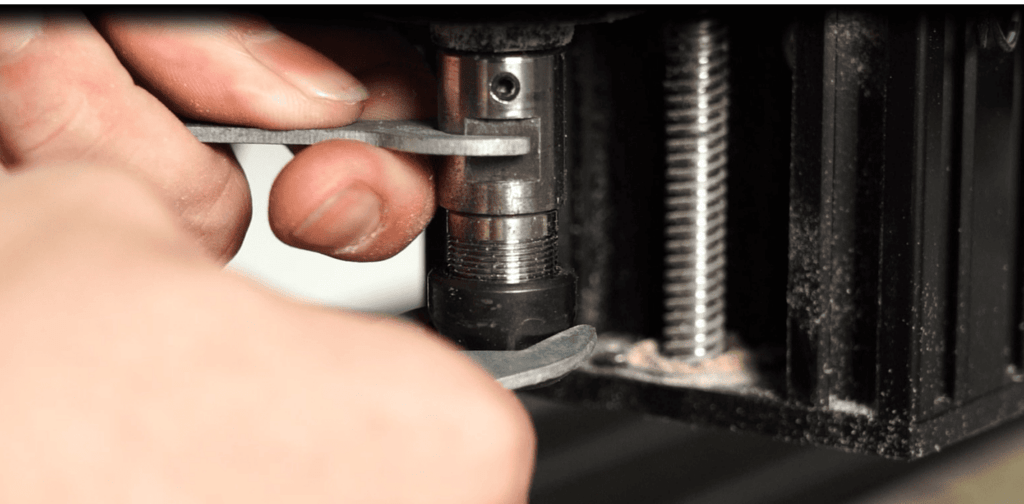
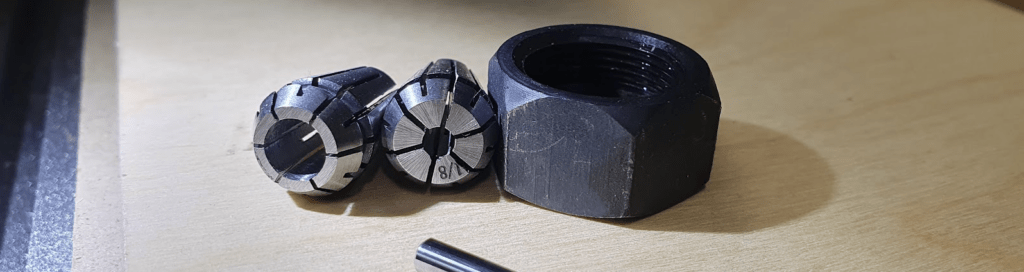
Now it will be to place the material to work on and anchor it to the work platform. For this, we can use the 4 aluminium clamps, ideally, double-sided tape, use vacuum systems or screw directly to the platform. The important thing is that the material is firmly anchored and flat.
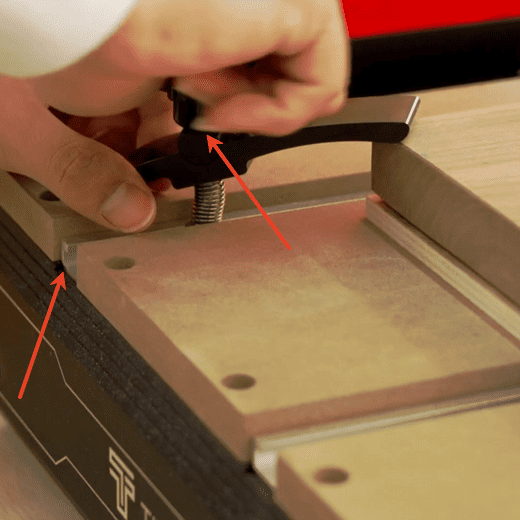
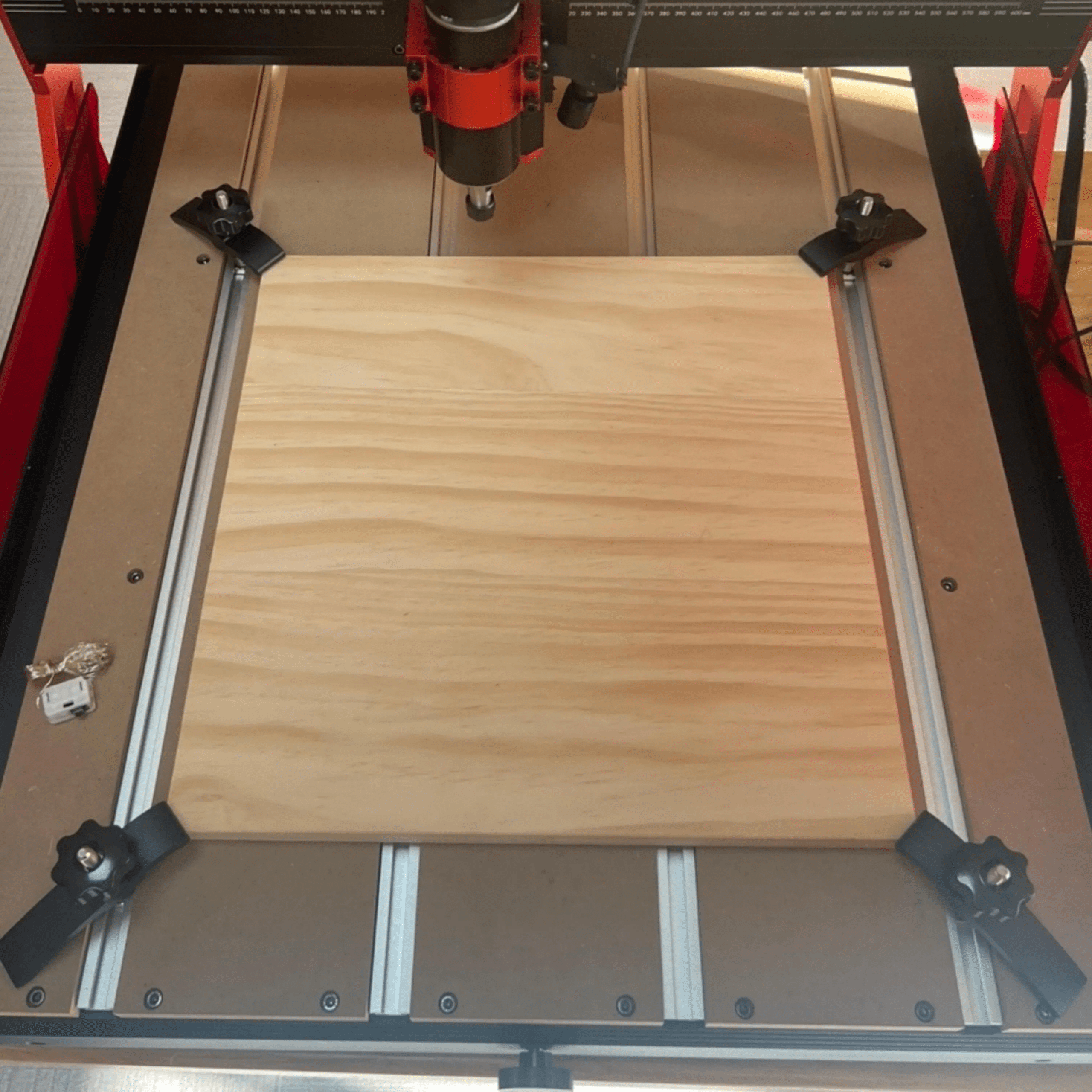
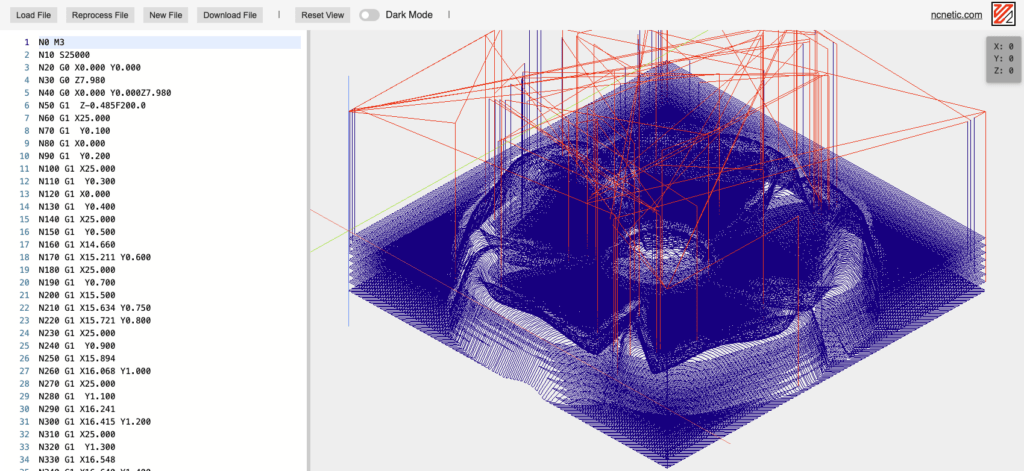
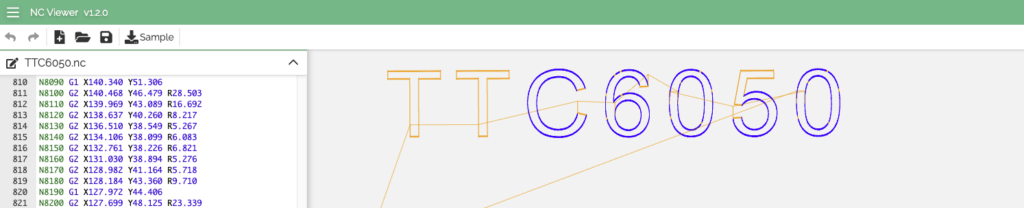
Now we have the machine ready; in the SD of the kit itself, we can find a file prepared for use… a flower and a text with the model’s name.
Performance and real tests with the TwoTrees TTC6050.
We are now truly starting to discover what we can get from this TwoTrees TTC6050 by beginning to create our projects. At this step, choosing the CAD/CAM tools that suit your needs, projects, and the machine is very important.
In our case, we are going to suggest two alternatives that have worked very well for us.
Easel=the best to start with
If what you’re looking for is to start chip removal from minute one without banging your head against endless manuals, Easel is our top recommendation. Especially if it’s your first foray into the CAD/CAM world, this tool is a real lifesaver.
The best thing about Easel is that it is a web-based solution that unifies the entire workflow=you design your piece, configure the CAM (cutting paths), and control the machine directly from the same interface. All integrated, without software jumps and with an almost flat learning curve.
That said, let’s be honest=like any “all-in-one” tool, it has its limitations. If you’re looking for very complex machining operations or advanced cutting strategies, it will soon fall short. Additionally, some of its most powerful features are under subscription.
Still, for taming your TwoTrees TTC6050 for the first time and starting to see real results without frustrations, it is the perfect travel companion. It is the ideal starting point to lay the foundations before taking the leap to heavier software.
Setting up the TwoTrees TTC6050 in Easel is almost as satisfying as the sound of the router cutting wood. Here is the workflow we follow to machine the 3Dwork logo.
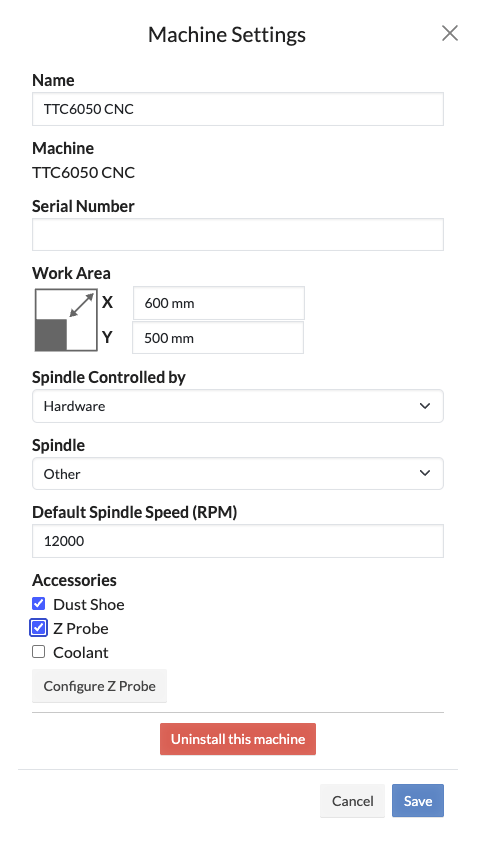
When you start, the first thing is to tell the software which machine we are working with. Easel supports machines based on GRBL, so communication with the TwoTrees controller will not be a problem. You just need to go to the Machine tab, select a generic GRBL profile, and adjust the work area (600x500mm).
Tip : The TwoTrees TTC6050, being a sturdy machine with ball screws, can be a bit more aggressive than a conventional 3018, but start with the conservative settings that Easel suggests for soft woods.
The next step is the creation of our project, here we can choose to use the basic tools of Easel and their basic designs or import an SVG vector image with the design made in another more powerful tool.
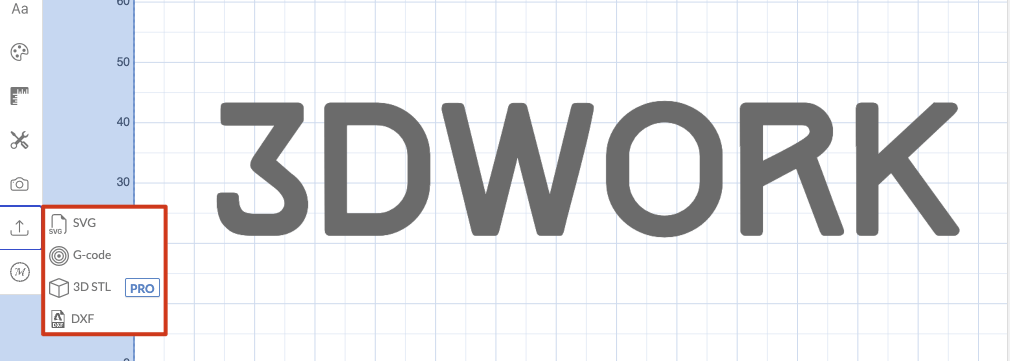
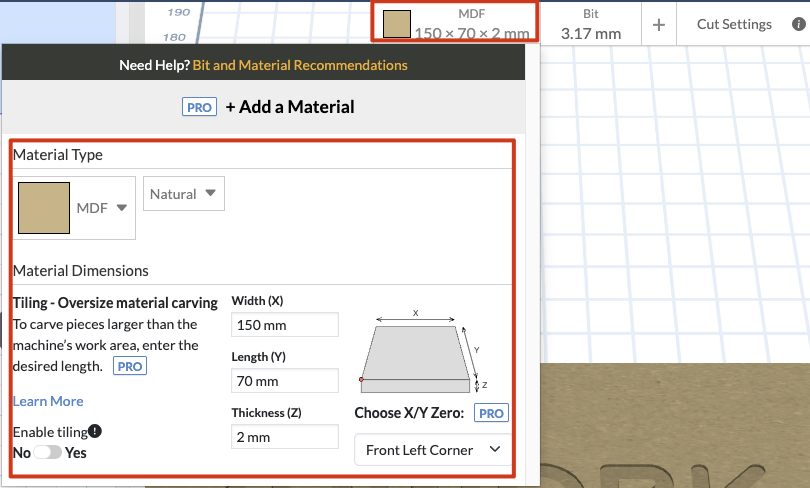
In the upper-right corner, we will adjust the options for the material and the cutter/tool/bit to be used:
- Material: Select from your library (e.g., Birch Plywood or MDF). This will automatically adjust the suggested cutting parameters.
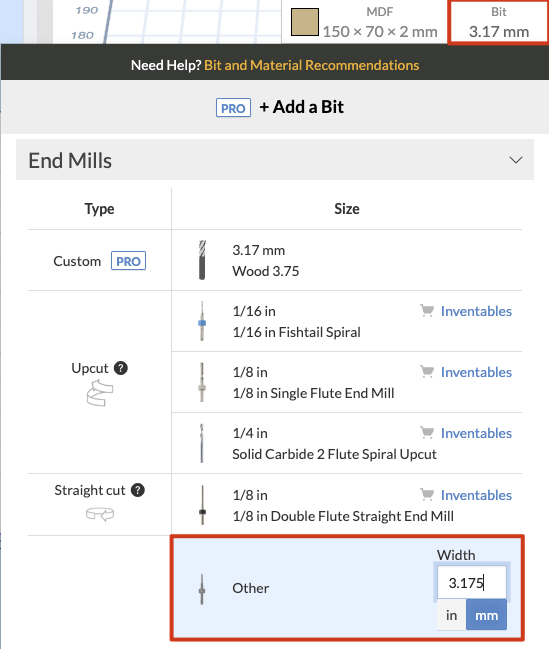
- The Bit (The drill bit): Here you define the diameter of your tool. If you’re going to make fine details in the logo, a 1/8″ (3.175mm) drill bit is usually the ideal all-rounder to start with.
Once we have everything ready, the next step will be the selection of the type of machining to be performed on the piece by choosing the paths of our project.
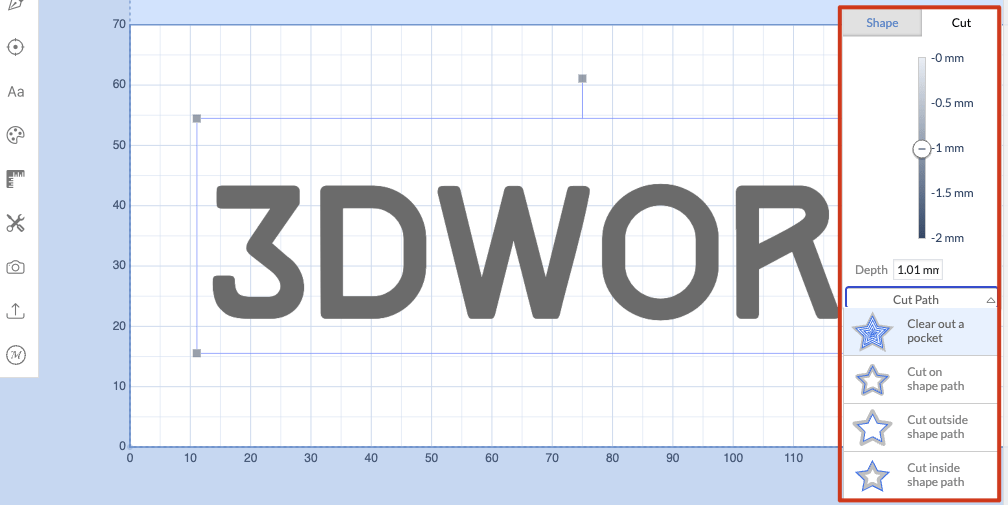
- Clear out a pocket: To empty the inside of the logo.
- Cut on shape path: To follow the line (inside, outside, or on the line).
- Depth: Defines how deep you want to go. Be careful not to go too far on the first pass!
We can simulate and verify our project directly from Easel, which is very useful to see potential problems or movements that could cause an accident with the anchors, etc…
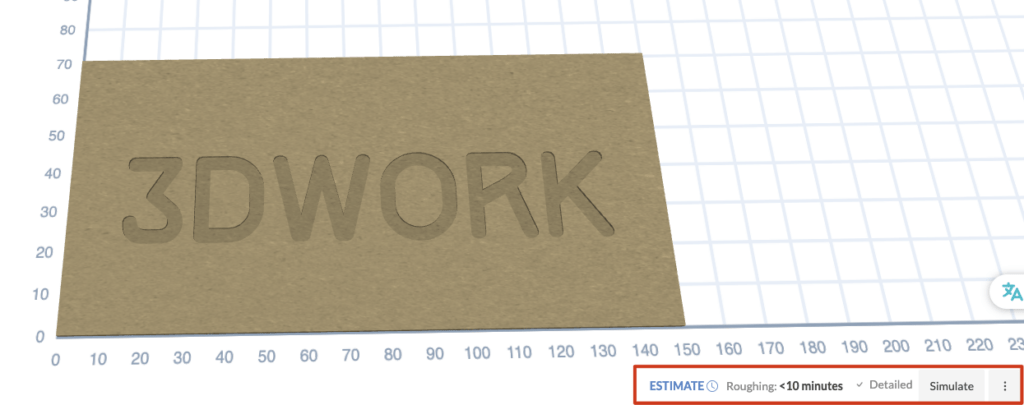
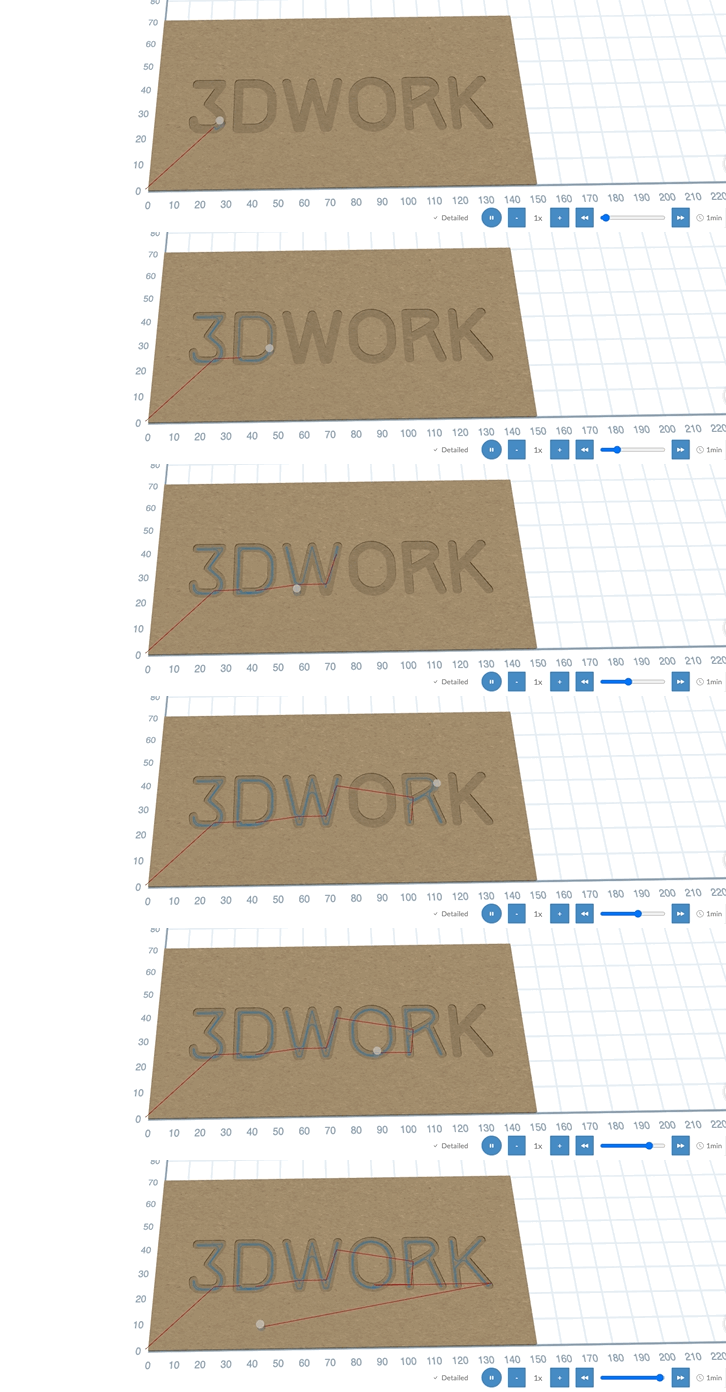
Once we are sure that everything is correct, we will go to the top right part to press the «Carve» button. Easel will guide you through some safety checks: Have you connected the machine? Have you fixed the material? Have you done the homing (Z-Zero)? Are you wearing safety glasses? If everything is OK… press play and enjoy watching your project take shape.
Next, we set out to make a simple candleholder. It is the perfect project to understand how to manage different depths in the same design without complications.
The design consists of only two semicircular outlines, and here is where the simplicity of Easel made our lives easier:
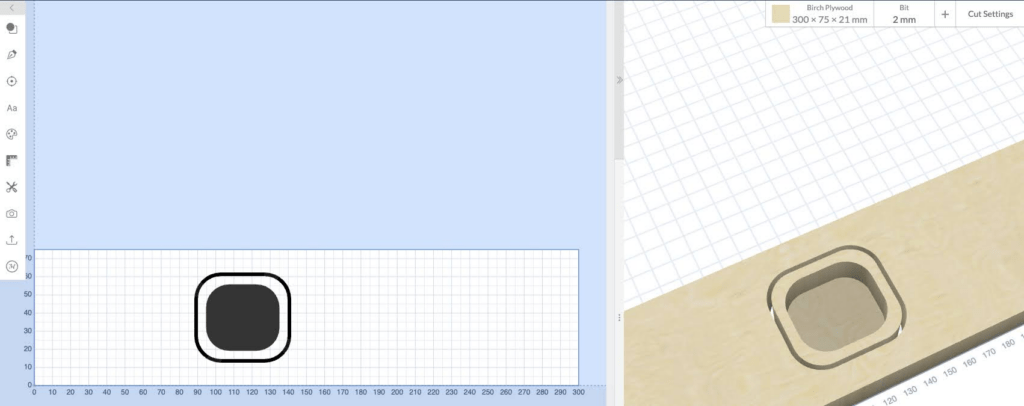
- Central hole: For the hole where the candle sits, we set a cutting depth 5 mm less than the total thickness of the piece. This ensures a solid and even base where the candle will rest.
- Outer contour: We gave 0.5 mm extra depth relative to the thickness of the material. By exceeding the thickness of the wood, we guarantee a clean cut on the bottom and reduce those annoying fibres that are not cut, which require more sanding.
The importance of the sacrificial piece: When making that extra cut of 0.5 mm, it is vital to have a sacrificial piece level on the TTC6050 platform. Thanks to this, the router can pass through the material with complete safety without even touching the machine’s platform.
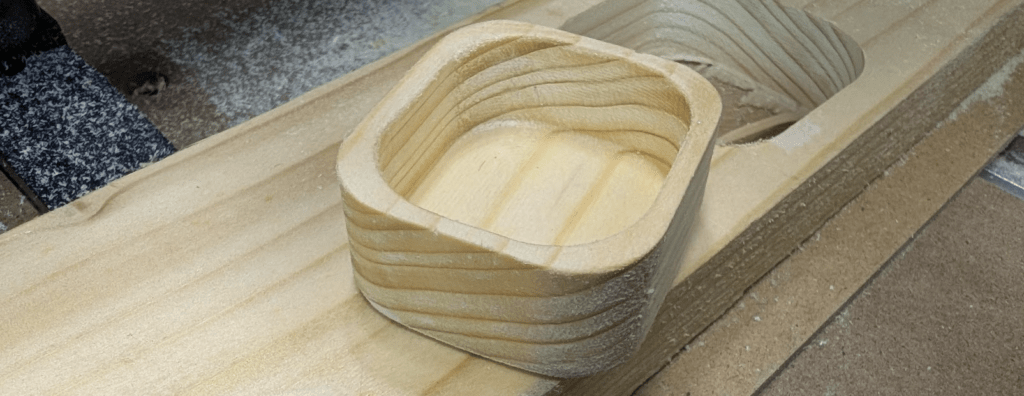
A very simple job with an excellent result!!! We only need to give it a sanding and seal/protect the wood.
Onshape + Kiri:Moto=cloud/web and with accessible Pro features
If you come from 3D printing, Onshape will sound familiar: it’s the “SolidWorks of the cloud.” But, how do we go from a 3D design to the commands our CNC understands? That’s where Kiri:Moto comes in, a plugin that works as the “laminator/slicer” but for CNC milling.
You can design your parts in Onshape with complete freedom thanks to its advanced tools. The ideal here is to work with real measurements and think in machining 2.5D or 3D.
Once you have your part finished, you don’t need to export anything, since by adding and using Kiri:Moto as App Element within your Onshape, we will have access to CNC tools.
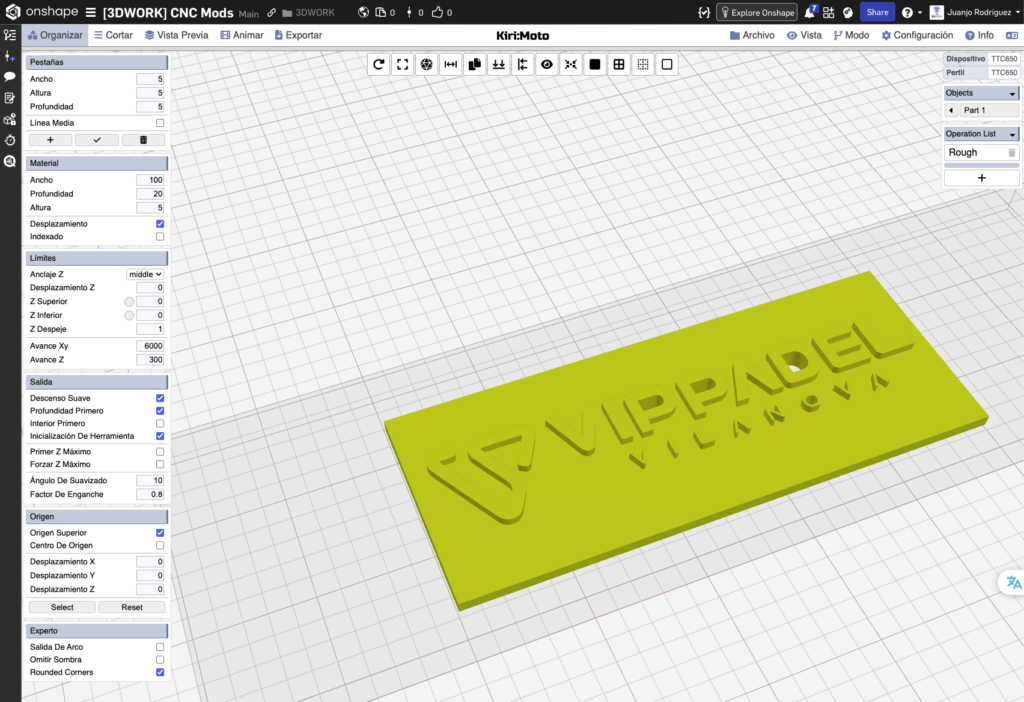
For this, within Kiri:Moto, select the CNC mode which allows us to:
- Machine setup: Configure the working area of the TTC6050 and make sure the post-processor is set to GRBL.
- Definition of tools: Unlike Easel, here you can create a detailed library of end mills: flat (end mill), ball (ball mill), or V-shaped, specifying flutes, length, and exact diameters.
In the Operations section, we will see how, instead of a single option like in Easel, Kiri:Moto allows you to chain processes; here are some examples, although we have a few more; you can see more information here.
- Roughing: To quickly remove material leaving a small margin.
- Outline: To profile the piece accurately.
- Contour: If your piece has smooth curves, this option will make the cutter follow the 3D surface.
- Drilling: If your design has holes for screw mounting.
Kiri:Moto also gives you full control over the spindle rotation speed and feed rate… although regarding the spindle speed, this control will depend on the spindle you use and whether it has direct control via the TTC6050.
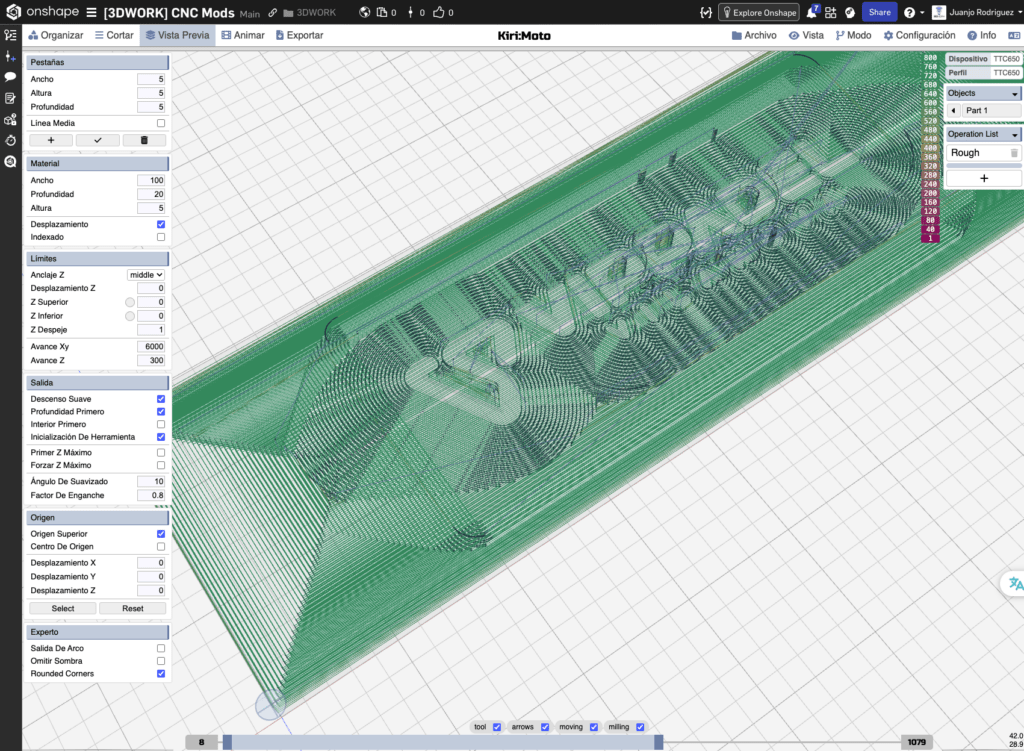
We can go to Simulation/Preview to see the tool paths. If everything looks correct, click on Export/Export and you will get the file .nc or .gcode. This file is what you will load into your control software (like Candle or the SD card of the TwoTrees itself) to start the project.
Suggestion: Onshape is much more powerful but more complex than Easel, removing many limitations. If you want to manufacture real mechanical parts with your CNC, learning Onshape + Kiri:Moto or other CAD/CAM software is the most advisable to get the most out of your CNC.
Usage tips TwoTrees TTC6050
Before finishing this review, we would like to share some tips that may be especially interesting for beginner users with this type of machine.
To avoid burning the material or breaking burs (which we have all done) or other types of accidents, you must understand the balance between the RPM of the spindle and the Feed Rate (advance speed).
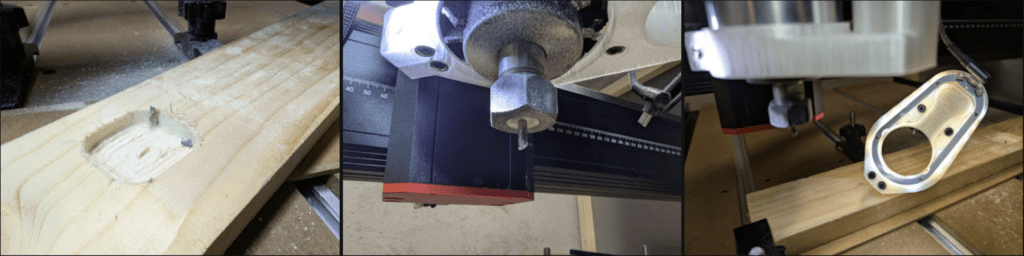
For soft materials, use high revolutions (12,000 RPM) and a rapid feed rate. For hard metals, lower the revolutions and use a slower feed rate to prevent the material from melting and sticking to the cutter.
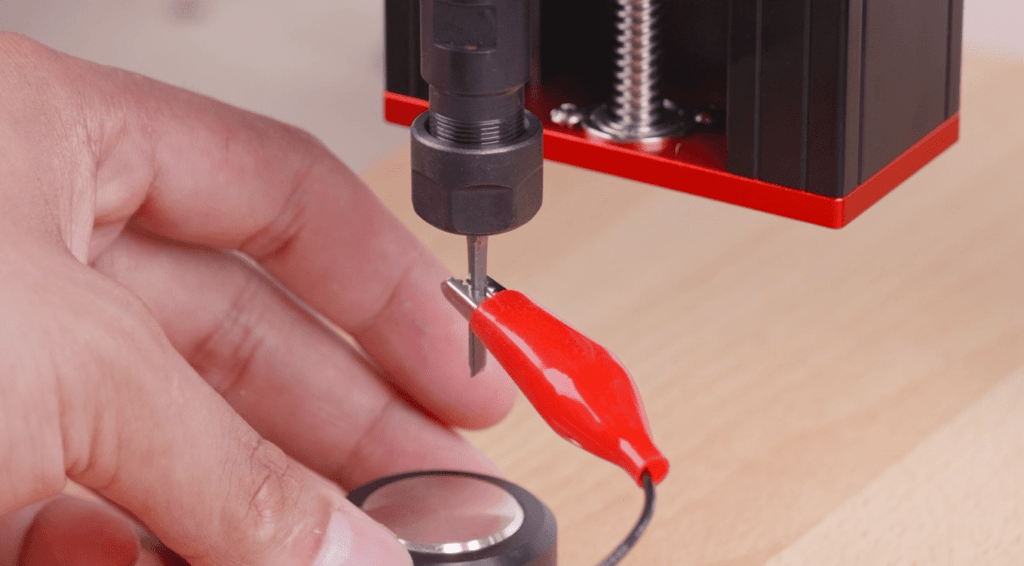
Since the TwoTrees TTC6050 includes an Auto Tool Setter or Z-Probe. When configuring your CAM software, make sure that the zero is on the surface of the material. To accomplish this, use the machine’s physical sensor to detect that height with an accuracy of ±0.05 mm.
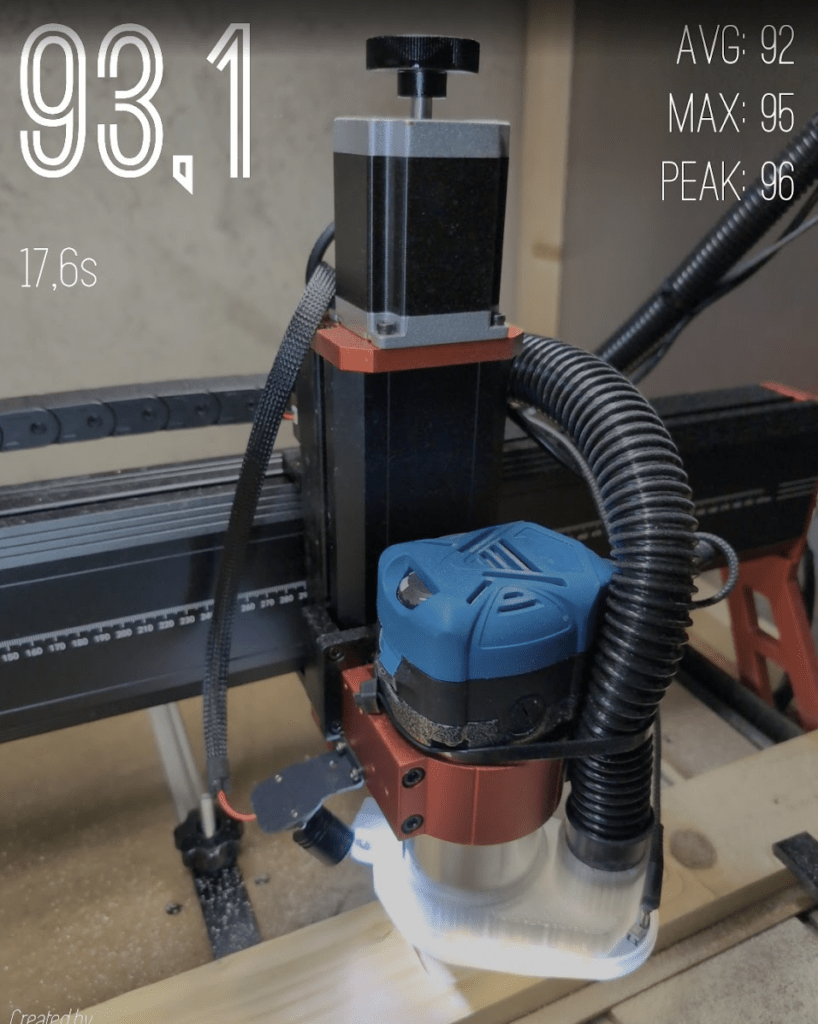
In 3Dwork we are always very strict about safety issues, although we must acknowledge that TwoTrees has made it a bit easier for us with this machine. Unlike other more basic models, thanks to this unit incorporating safety infrared sensors.
What are they used for in everyday life? Elementary: we have all had that moment of panic during the first steps with the software where we see that the cutter goes where it shouldn’t. If you make a mistake and, out of instinct or necessity, try to reach in to save the piece or adjust something, the machine will detect the interruption of the infrared beam and will stop abruptly in less than a second. It is a technological safeguard that is greatly appreciated, especially when you are gaining confidence.
!!!However, don’t let your guard down!!!
No matter how safe the electronic stop is, if you are going to manipulate the mill, tighten a screw, or clean accumulated chips, the machine must always be turned off. Total safety starts with your habits, not just with sensors. Sensors are a help, but they do not replace your safety glasses, mask, or other safety measures.
TwoTrees provides us with some basic information on how to troubleshoot certain types of problems with this machine; we recommend having this troubleshooting guide for the TwoTrees TTC6050 on hand.
Although the TTC6050 looks like a rock in its construction, remember that ball screws require minimal lubrication maintenance to maintain that ±0.05 mm accuracy in the long term. Do not let dust accumulate on the threads, and we also recommend using the Monster M1 suction system from TwoTrees or a similar one.
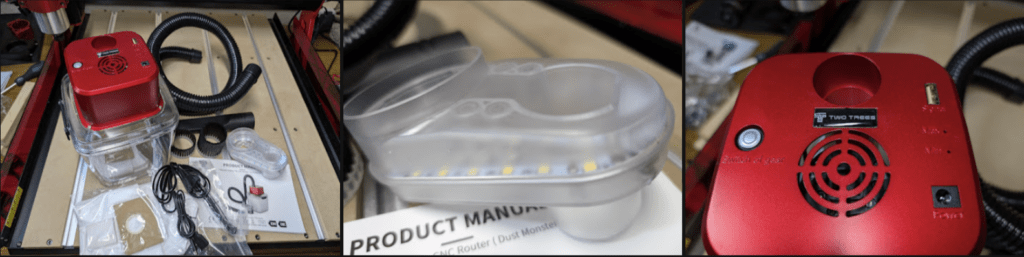
In any case, you can find a maintenance guide for the TwoTrees TTC6050 at the following link.
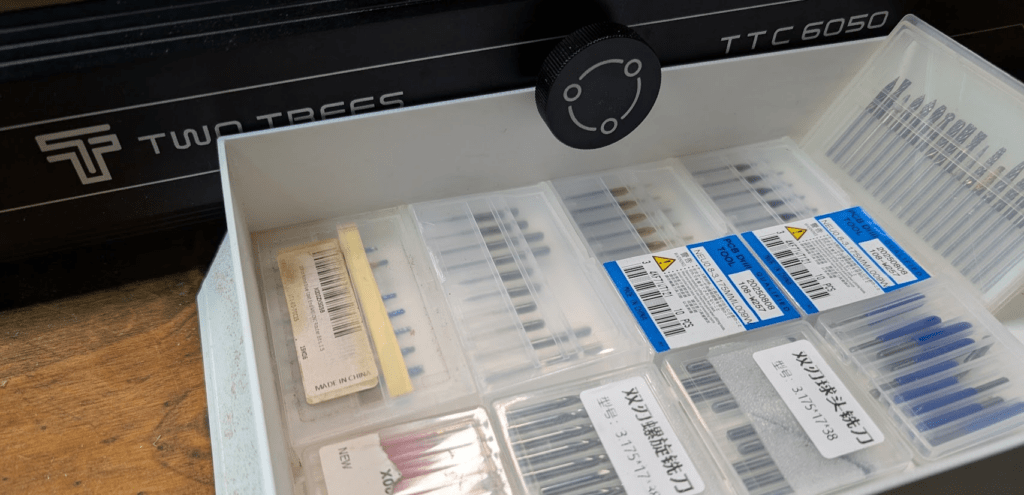
Another great tip… use quality end mills suitable for the material you are working with… especially when dealing with hard/technical materials, as they will greatly improve the quality of your projects and prevent accidents.
Where to buy the TwoTrees TTC6050?
We have different options to get the TwoTrees TTC6050 both on its website and in other online stores:

Final rating of TwoTrees TTC6050
The first thing you notice when assembling this TwoTrees TTC6050 is its weight (almost 40 kg with accessories). That weight already gives us a clue that the 16 mm ball screws and the linear guides, along with its impressive structure, make the machine a serious thing.
Forget about the vibrations of belt machines; here, if the cut goes wrong, it’s usually due to software parameters, not lack of rigidity.
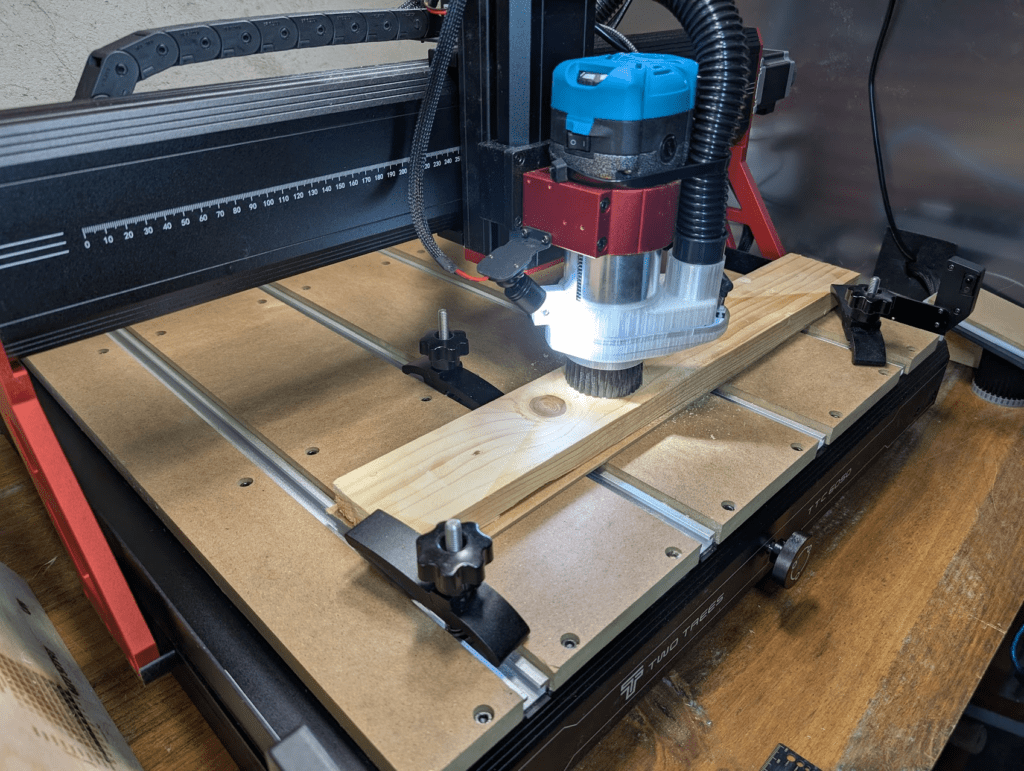
Warning: it comes 95% disassembled. On our workbench, it took us about 2 hours and fifteen minutes, but if it’s your first time, reserve a whole morning. The parts are large and heavy, and the screws are well identified, but the manual sometimes falters in some sections or explanations.
During our first tests, the experience was not exactly idyllic: poor finishes, strange vibrations, and even some broken end mills for no apparent reason. After a thorough investigation, it turns out that the transportation vibrations (and perhaps a somewhat rushed factory assembly) had loosened several screws in the structure on the X and Z axes. The tricky part is that they were in hard-to-access internal parts of the parts that already come pre-assembled.
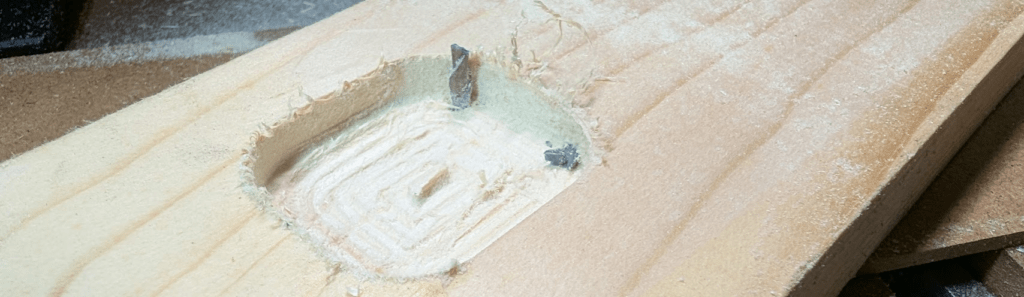
Before turning it on, check each screw, even those that don’t seem to need touching. A rigid and well-tightened structure is the difference between a perfect piece and a broken mill.
The situation did not improve with the 800W spindle upgrade. The manual included for this TTC6050 was excessively brief, forcing us to rely on intuition and previous experience to avoid making a critical error.
And watch out, here comes an important warning for those of you considering equipping it to the max: the official brand suction system is incompatible with the 800W support. A design or foresight flaw that seems incomprehensible to us, since it forces you to choose between cutting power or cleaning in the workshop.
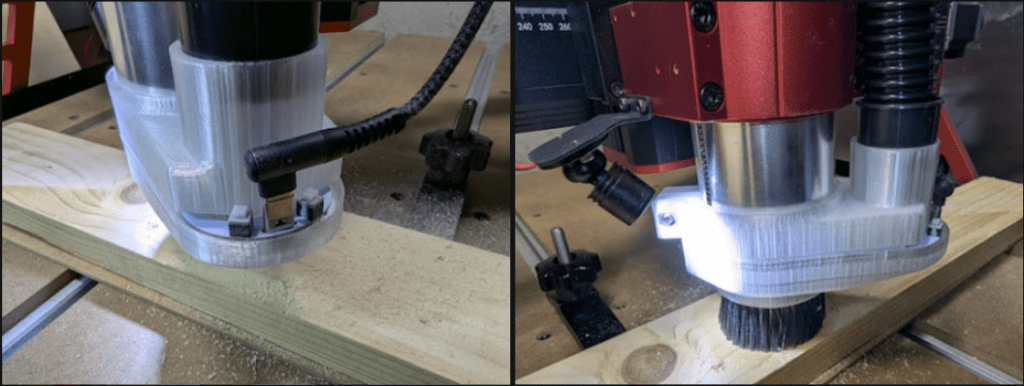
Although, as good makers, thanks to our Revopoint we scan all the pieces and make a modification to be able to use it, which turned out great and very useful. As soon as we have time and the final, more refined design, we will leave the link to the mod here.
Now an important question… Who is this machine for?
- Advisable for the experienced maker or the small entrepreneur who needs real production. If you do signage, small furniture, or demanding prototyping, the TTC6050 is an excellent alternative.
- We do not recommend it: If you’re looking for something to “plug and play” or if you don’t have a suitable place for its use, this machine is not for you.
After testing it in our workshop for several weeks, the conclusion is clear: the TwoTrees TTC6050 is a sensational machine that beats with the soul of a professional team, but maintaining an affordable price and size for the amateur environment.
It is true that it has some issues: TwoTrees still has room for improvement in the accessibility of its ecosystem and, above all, in documentation that matches the hardware. However, if we look strictly at the mechanical performance and robustness, this machine plays in an entirely different league from other desktop options we have tested.
With the TwoTrees TTC6050, you don’t get a toy for simple engravings; you get a precision tool capable of producing professional-level parts in your own home workshop. If you’re willing to overcome that initial learning curve (and review some screws), the results will speak for themselves.


